
Getting Where Winds Meet running at its peak performance requires the right balance of visual fidelity and frame rate stability. This martial arts RPG demands careful optimization to deliver smooth combat and stunning visuals without compromising your gaming experience.
Why Performance Matters in Where Winds Meet
Where Winds Meet is demanding for the same reason it is visually impressive. It loads gigantic zones with no breaks, fills them with foliage density that reacts in real time, and uses DirectX 12 features like DLSS, FSR, and advanced lighting models.
The engine works hard, so your PC needs to be configured properly. Many players who complain about stutters are not actually suffering from a weak GPU. The truth is most of the bottlenecks come from unoptimized Windows settings or outdated GPU configurations. Set things up correctly and the game can run far smoother than you would expect.
Essential Windows Optimizations Before Launch
Start your optimization journey outside the game itself. These Windows tweaks create the foundation for stable performance:
Game Mode and Hardware Acceleration
Navigate to Settings > Gaming > Game Mode and enable this feature. Game Mode prioritizes system resources for your gaming session, reducing background interruptions that cause frame drops.
Enable Hardware-accelerated GPU scheduling through Settings > System > Display > Graphics Settings. This feature reduces CPU overhead by allowing your graphics card to manage its own memory more efficiently.
Important
If you're using a Ryzen 7900X3D or 7950X3D processor, keep Game Bar enabled. These CPUs use Game Bar to optimize core scheduling for gaming workloads.
Power and Performance Settings
Switch your power plan to Balanced rather than High Performance. Modern testing shows Balanced mode actually delivers better boost clocks and sustained performance in gaming scenarios.
Disable these performance-draining features:
- Game Bar (except for specific Ryzen CPUs mentioned above)
- Game Capture recording
- Background app refresh for unnecessary applications
NVIDIA Control Panel Settings
If you are on an RTX card, configure these before launching the game:
Using the latest DLSS override ensures you are not stuck with outdated DLSS templates baked into the game build.
AMD Radeon Settings
AMD users should focus on upscaling efficiency and frame caps.
In-Game Settings Optimization
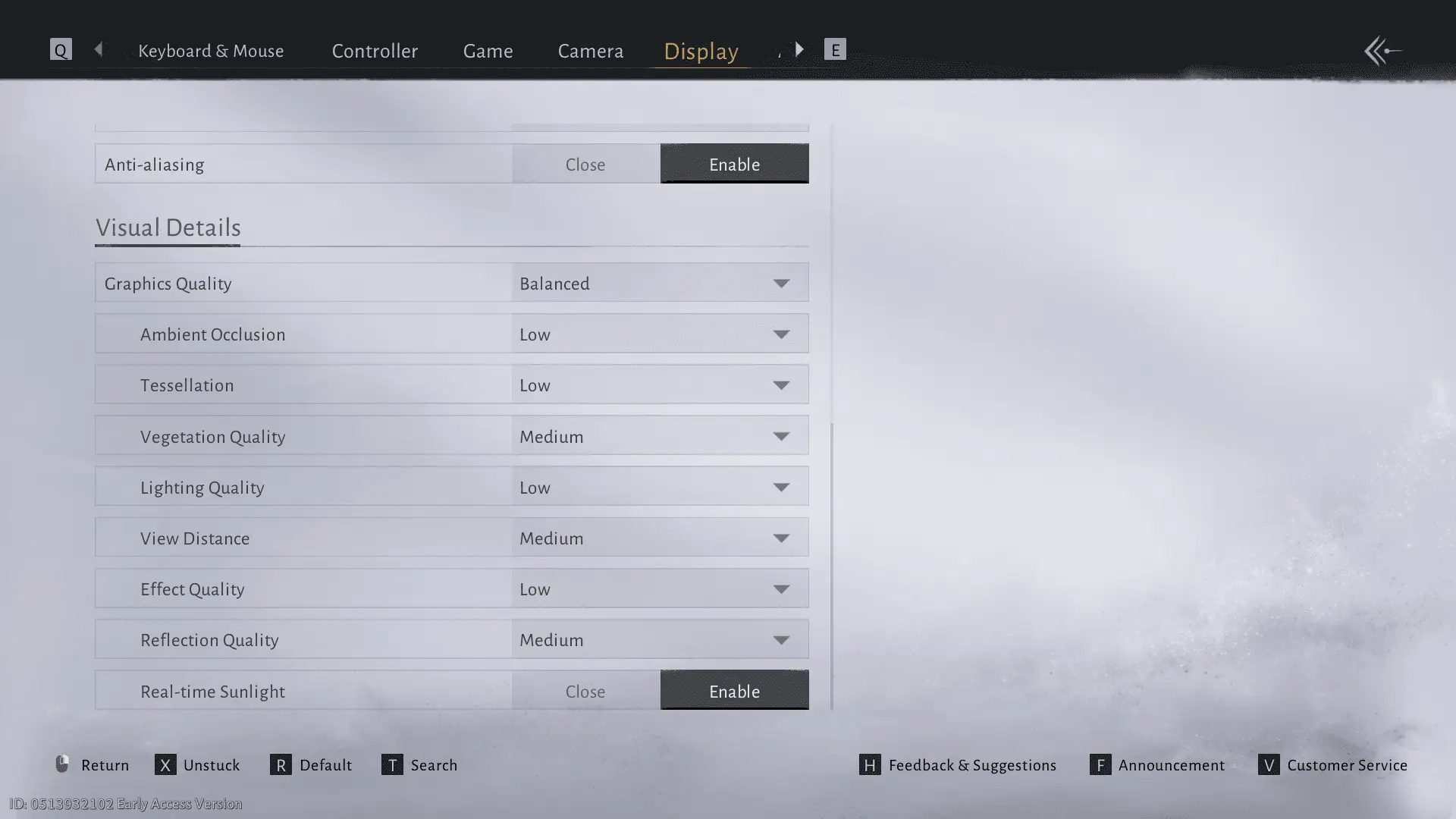
Now for the part you came here for. These settings are built from the ground up to reduce GPU strain while keeping the world visually consistent.
Display and Resolution Settings
Always use Fullscreen mode rather than borderless windowed for maximum performance. Motion blur should stay disabled as it reduces visual clarity during fast combat sequences.
Super Resolution and Upscaling
DLSS Quality provides the best balance of performance and visual fidelity for NVIDIA RTX users. You'll gain approximately 15-20% performance improvement with minimal quality loss.
FSR Quality at 66% offers similar benefits for AMD users, though XeSS Ultra Quality often produces superior image quality if available.
Tip
Frame Generation can boost FPS significantly but adds input latency. Test it carefully during combat to ensure it doesn't affect your reaction timing.
Visual Quality Settings
These settings matter the most for eliminating heavy dips:
If you want stable frame time, these are the sliders that make the biggest difference.
Advanced Performance Tweaks
Beyond basic settings, these advanced optimizations can provide additional performance gains:
1. Memory / Storage
• The game benefits from 32GB RAM, but you can still play on 16GB if Windows is optimized.
• Install the game on an SSD, not an HDD. The streaming system depends heavily on fast read speeds.
2. Network and UI Load
Small UI elements can hurt performance more than expected.
• Set chat to Exploration Mode instead of Social Mode.
• Disable large damage numbers or excessive banners during large fights.
• Reduce overlay clutter if you are using third-party tools.
Troubleshooting Common Performance Issues
If you're still experiencing issues after optimization, check these common problems:
Stuttering During Combat
Likely caused by incomplete shader compilation.
Clear your shader cache in your GPU driver and let the game rebuild it naturally during your next sessions.
FPS Drops in Towns
Lower View Distance and Effect Quality. Cities are CPU heavy and draw many dynamic objects.
Input Lag
• Turn off V-Sync
• Turn on Low Latency Mode (NVIDIA)
• Make sure your monitor is set to its correct refresh rate in Windows
HDR Problems
HDR detection is inconsistent for some setups. Disable HDR temporarily if your screen flickers or looks washed out.
Warning
Some players report issues with HDR detection on PS5 and PC. Disable HDR temporarily if you experience display problems.
Monitoring Your Optimization Results
Use MSI Afterburner or similar tools to monitor your optimization effectiveness. Target these benchmarks:
- GPU Utilization: 95-98% (not 100% to avoid input lag)
- CPU Usage: Balanced across cores without single-core bottlenecks
- Frame Time Consistency: Minimal spikes or drops
Regular monitoring helps you identify when settings need adjustment as you progress through different areas of the game world.
Your optimized Where Winds Meet experience should deliver smooth combat, stunning visuals, and responsive controls. Remember that Where Winds Meet combat demand precise timing, so prioritize frame rate stability over maximum visual settings. For more advanced strategies, check out our Where Winds Meet weapon tier list and beginner's guide to maximize your martial arts journey.