
Getting Dying Light: The Beast to run smoothly on your PC doesn't have to be a nightmare. Whether you're rocking the latest RTX 4090 or grinding on a mid-range setup, the right settings can transform your zombie-slaying experience from choppy frustration to buttery-smooth survival horror. You'll discover exactly which settings drain your FPS and which ones you can max out without breaking a sweat.
Essential Windows Optimization Before You Start
Your Windows settings can make or break your gaming experience. Start with these crucial tweaks:
Navigate to Settings > Gaming and configure these options:
- Game Bar: Disable unless you have a Ryzen 7900X3D or 7950X3D (these CPUs use Game Bar for core scheduling)
- Hardware-accelerated GPU scheduling: Enable this immediately
- Game Mode: Keep enabled - it's vastly improved since Windows 10
- Captures: Disable all recording features to free up resources
Switch your power plan to Balanced rather than High Performance. Modern testing shows Balanced mode delivers better boost clocks and sustained performance across longer gaming sessions.
tip
Update your GPU drivers, motherboard BIOS, and enable XMP/DOCP memory profiles for maximum performance gains.
NVIDIA Graphics Driver Optimization
For NVIDIA users, the new NVIDIA App offers game-changing features. Access these through the Graphics section:
Global DLSS Override Settings
Enable DLSS Override to force the latest DLSS 4 technology in games, even when developers haven't updated their implementations. Configure:
- Frame Generation: Latest version
- Ray Reconstruction: Latest version
- Super Resolution: Latest version
- Smooth Motion: Off (reduces input lag)
- Low Latency Mode: On
- Shader Cache Size: 10GB (or 100GB if you have storage space)
Display and Performance Tweaks
- G-Sync: Enable for compatible monitors, set to "Fullscreen and windowed"
- Digital Vibrance: Increase to 55% for more saturated colors
- Power Management: Set to 133% if your GPU has good cooling (5-7% FPS boost)
AMD Radeon Settings Optimization
AMD users get powerful optimization tools through Radeon Software:
Essential Graphics Settings
- FSR 4: Enable if available on your card for superior upscaling
- Radeon Chill: Lock FPS 3 frames below your monitor's refresh rate (167 FPS for 170Hz displays)
- Anti-Lag: Keep disabled - causes more problems than it solves
- Image Sharpening: Enable at 60-70% if the game looks blurry
warning
If you experience random stuttering, use the "Reset Shader Cache" option in Radeon Software. This rebuilds corrupted shaders that can cause performance issues.
In-Game Video Settings
Core Display Settings
Start with these fundamental configurations:
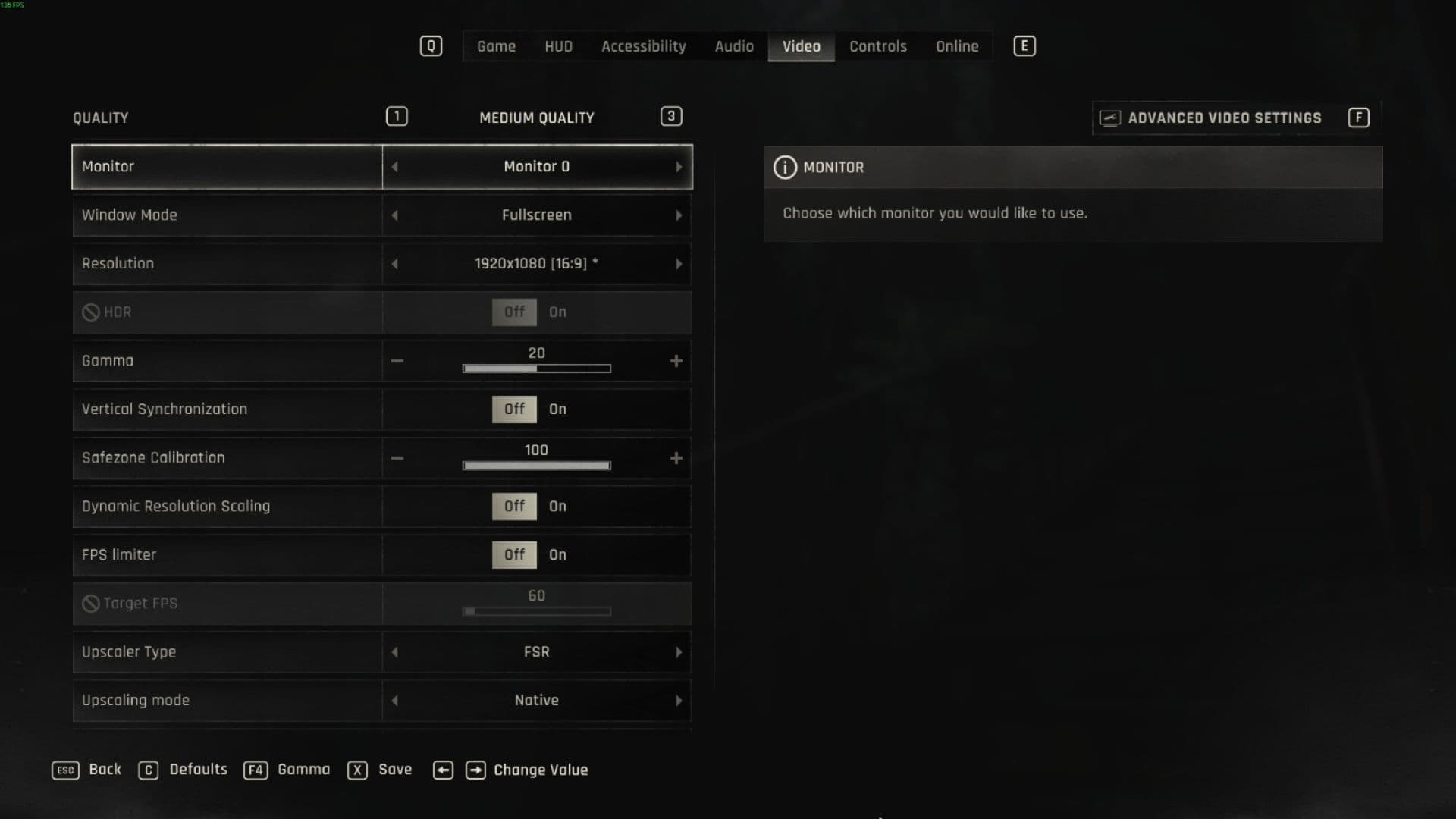
- Window Mode: Fullscreen (mandatory for best performance)
- Resolution: Your monitor's native resolution
- Vertical Sync: Off if using G-Sync/FreeSync, otherwise match your target framerate
- Dynamic Resolution Scaling: Off
- FPS Limiter: Off for VRR displays, otherwise set to your target
Advanced Graphics Settings That Matter
Here's where you'll find the real performance gains:
Draw Distance Multiplier: The most demanding setting
- Default: 100 (Medium), 140 (High)
- Recommended: 100 for significant FPS boost
- Going from 140 to 100 can net you 30-40% more frames
Shadows Quality:
- Medium offers the best balance
- High provides minimal visual improvement for major performance cost
- Screen Space Shadows: Keep enabled - negligible performance impact
Ambient Occlusion Quality:
- Essential for visual depth since ray tracing is disabled
- Low recommended - game looks flat without it
- High provides minimal improvement for measurable performance cost
The game remains playable on Valve's handheld with these settings, though you'll sacrifice visual fidelity for smooth performance.
Settings That Don't Matter
Some settings offer minimal visual improvement while tanking performance:
- Post Process Quality: Broken implementation - only affects random pillar shading
- Fog Quality: Barely noticeable improvements, mostly affects interiors
- Particles Quality: Currently appears non-functional in testing
- Motion Blur: Set to 0 - nobody wants blur in a zombie survival game
info
The game's optimization is surprisingly rigid. Even aggressive setting reductions yield minimal FPS gains compared to upscaling technologies.
Optimal Settings Configuration
Based on extensive testing, here's your performance-optimized setup:
High-End Systems (RTX 3070+)
- Upscaler: DLSS Quality
- Texture Quality: High
- LOD Quality: High
- Draw Distance: 140
- Shadows: Medium
- Ambient Occlusion: High
- Global Illumination: Medium
- Reflections: High
Mid-Range Systems (GTX 1660 - RTX 3060)
- Upscaler: DLSS/FSR Quality
- Texture Quality: Medium (if VRAM limited)
- Draw Distance: 100
- Shadows: Medium
- Ambient Occlusion: Low
- Global Illumination: Low
- Reflections: Low
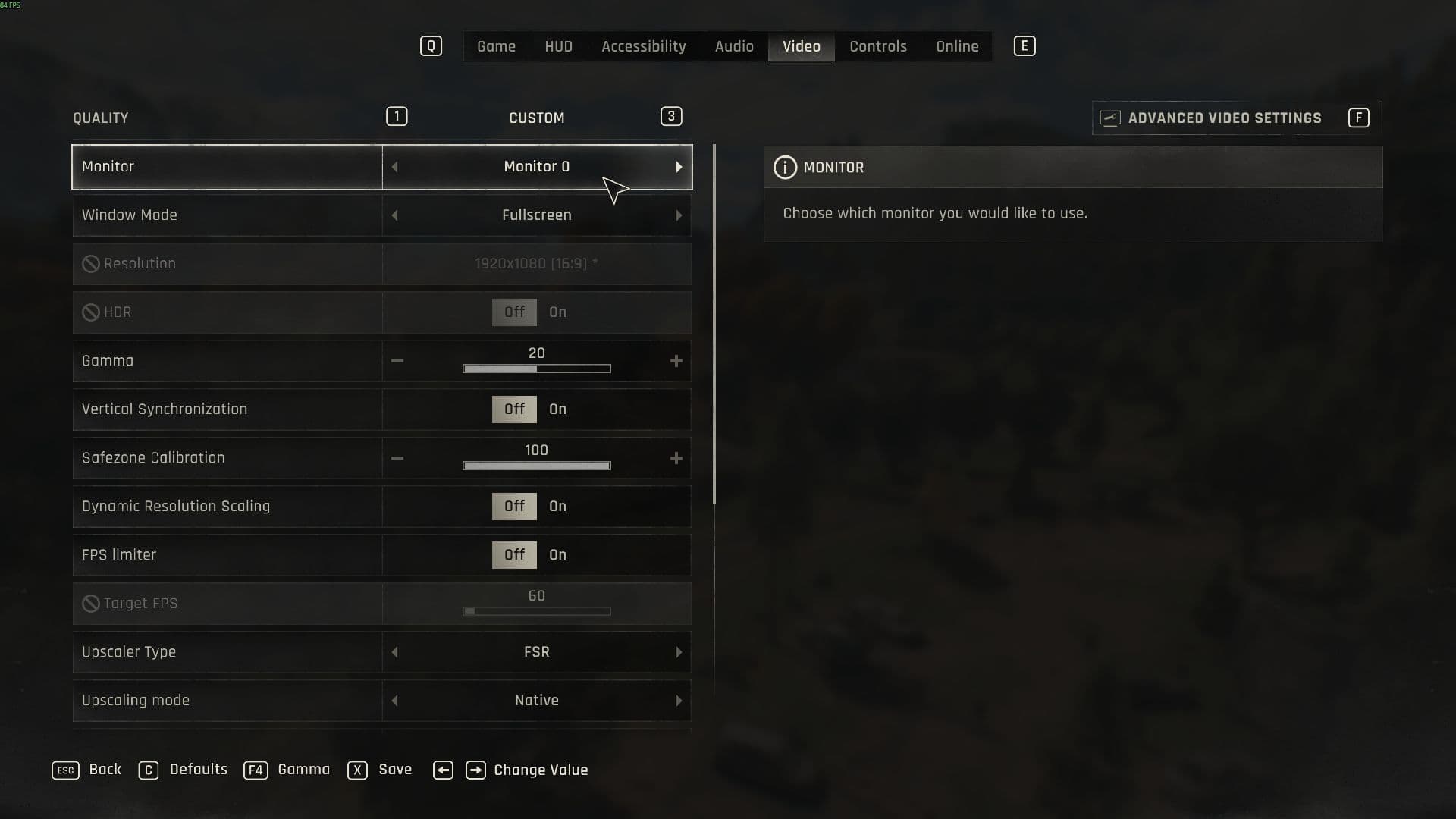
The Beast graphics settings and controls
The reality? Dying Light: The Beast offers limited scalability despite numerous settings. Your biggest performance gains come from smart upscaling choices and targeted reductions to Draw Distance and Shadows. Focus on these key areas, and you'll transform your zombie-hunting experience from slideshow to smooth survival action.
For more Dying Light: The Beast, take a look at our All Blueprint Locations and Crafting Guide