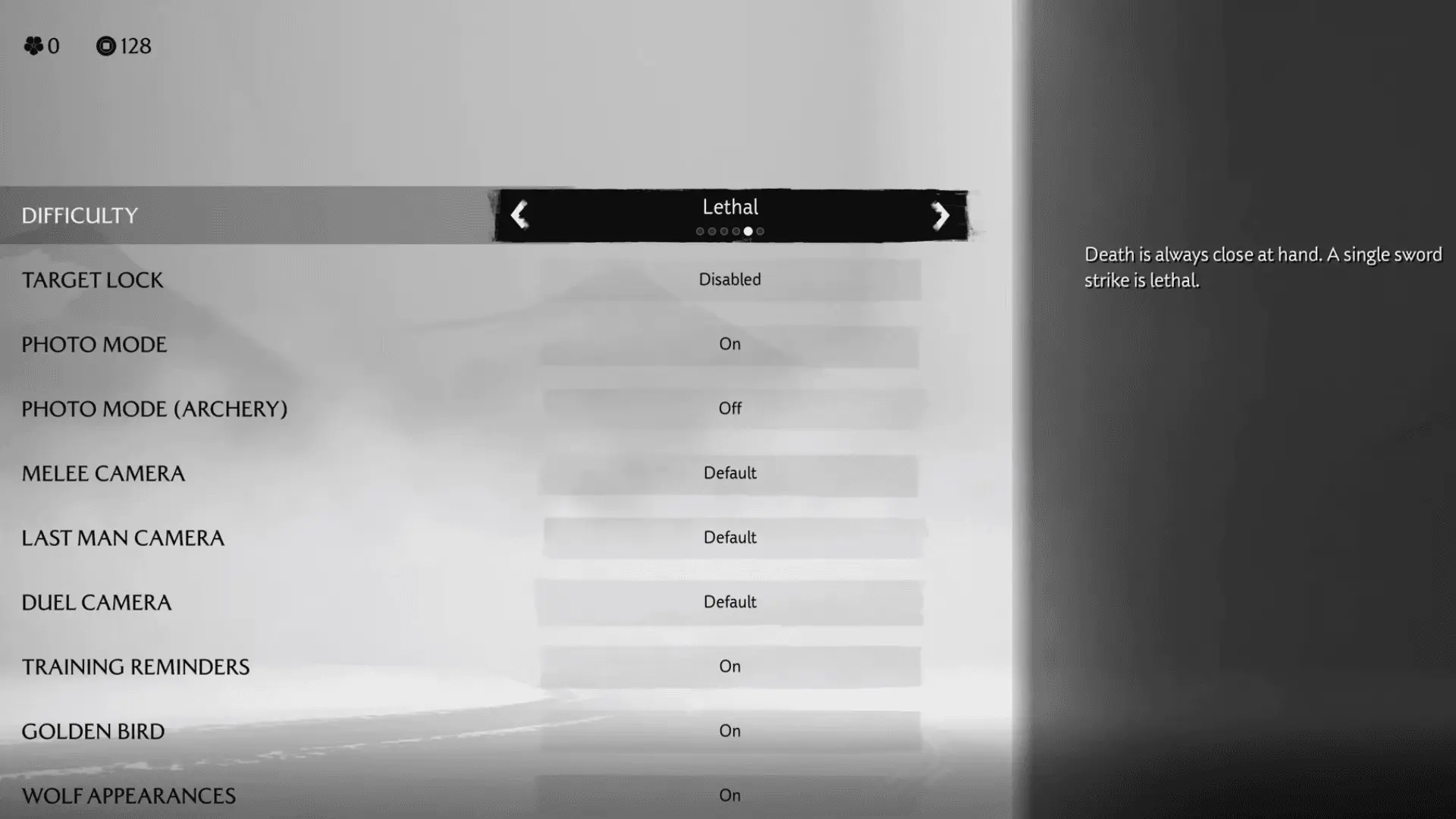

Getting the most out of Ghost of Yotei starts with dialing in your settings perfectly. Whether you're wielding your katana against bandits or exploring the stunning landscapes of Hokkaido, the right configuration transforms good gameplay into an exceptional experience. This guide breaks down every crucial setting to maximize your performance, visual quality, and overall enjoyment.
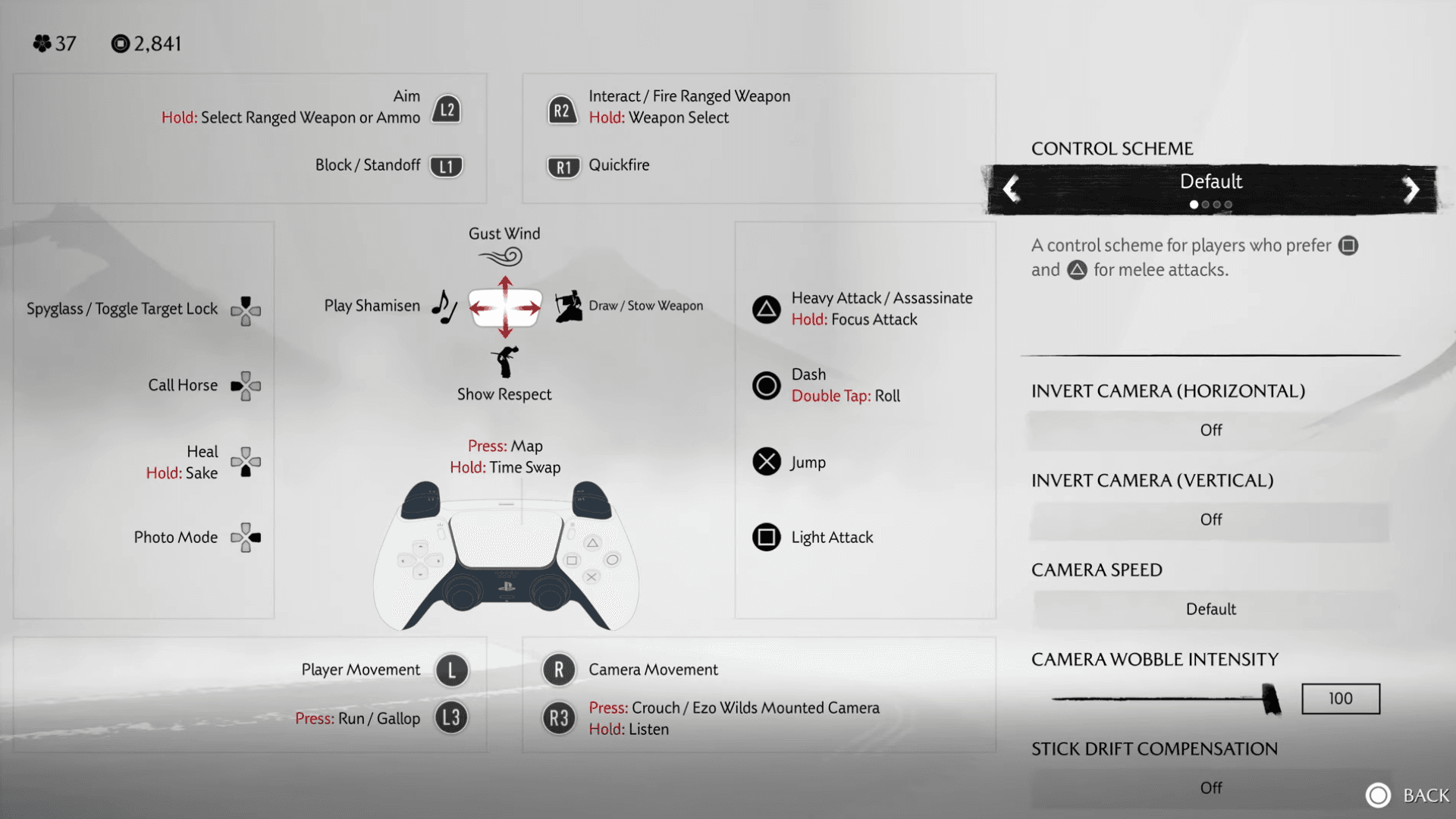
Camera and Control Optimization
Your camera settings directly impact how responsive combat feels and how smoothly you can navigate Yotei's world.
Camera Speed Configuration
The camera speed setting dramatically affects your reaction time during intense battles. Here's what each option delivers:
For most players, Fast camera speed proves essential. When you're surrounded by multiple enemies, that split-second advantage in camera movement can mean the difference between a perfect parry and taking damage.
Ghost of Yotei: Difficulty Setting ...
tip
Fast camera speed takes some adjustment if you're used to slower settings, but the combat advantages are worth the learning curve.
Camera Wobble and Motion Control
Camera wobble intensity adds cinematic flair but can cause motion sickness for some players. You can reduce this all the way to zero for a completely stable view, or keep it moderate for immersion without discomfort.
The stick drift compensation toggle is a game-changer if your controller has developed unwanted movement. Enable this to reduce camera drift when your controller is at rest.
Combat and Difficulty Tuning
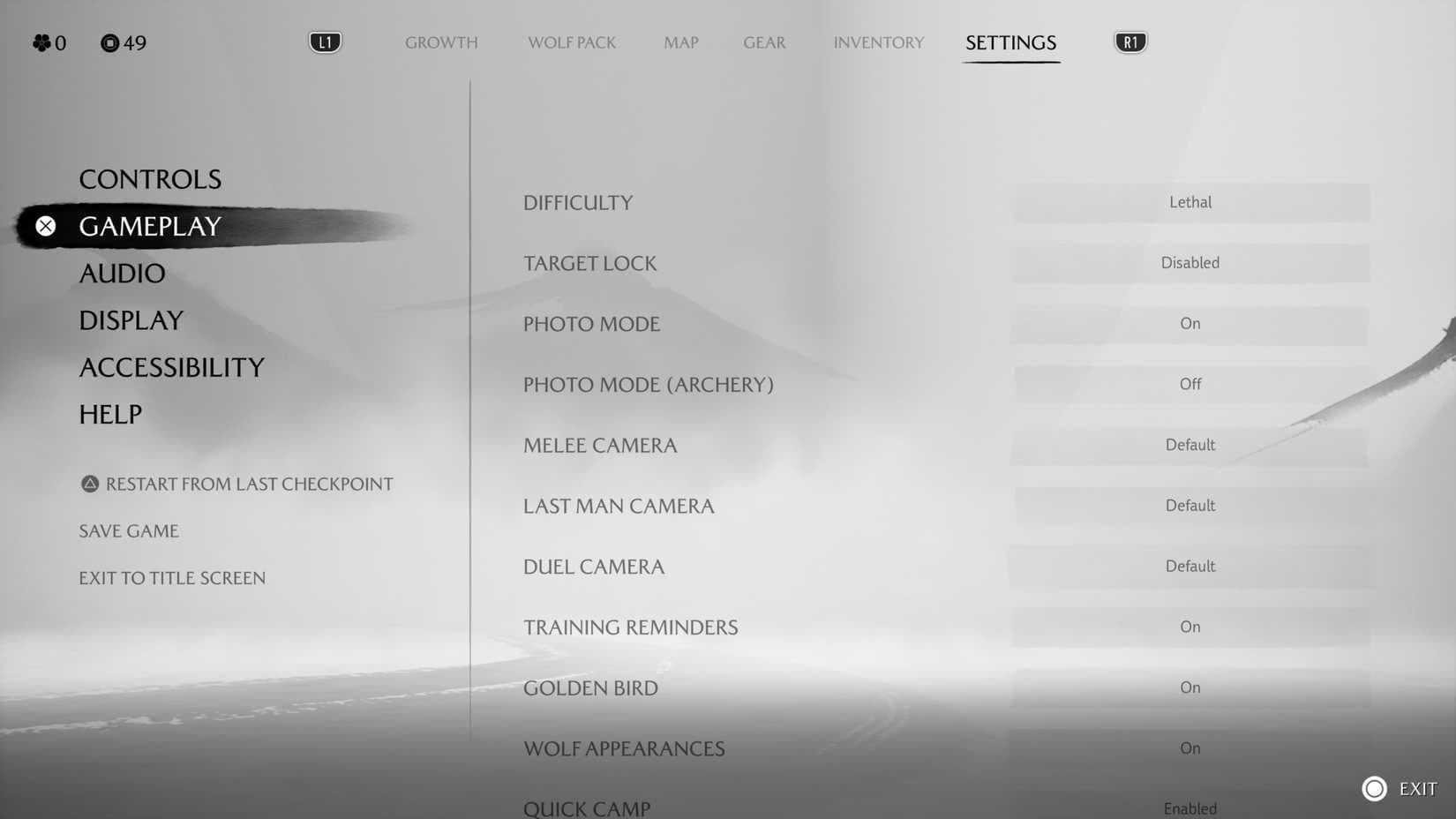
Ghost of Yotei offers unprecedented control over your challenge level through its difficulty options.
Difficulty Modes Breakdown
- Casual/Easy: Minimal challenge, perfect for story focus
- Medium: Developer-intended experience with balanced combat
- Hard: Increased enemy aggression and damage
- Lethal: Maximum challenge requiring perfect timing
- Custom: Fine-tune individual aspects
The Custom difficulty option deserves special attention. You can independently adjust:
- Enemy aggression levels
- Timing windows for parries and blocks
- Enemy damage output
- Stealth detection sensitivity
- Hero bonus perk effectiveness
important
Custom difficulty lets you create challenging combat while keeping forgiving stealth mechanics, or vice versa.
Target Lock Considerations
Target lock remains controversial among Ghost players. While available, the system can feel restrictive during fluid combat encounters. Most experienced players prefer keeping it disabled to maintain the series' signature free-flowing combat style.
If you do enable target lock, the swap on defeat option automatically switches to new enemies when your current target falls.
Graphics and Performance Settings
Your graphics mode choice depends entirely on your PlayStation console and priorities.
PS5 Standard Options
PS5 Pro Advantages
PS5 Pro owners get access to Ray Tracing Pro mode, which delivers ray-traced lighting at 60 FPS with intermediate resolution. This essentially combines the best aspects of Performance and Ray Tracing modes.

Recommendation: PS5 Pro users should prioritize Ray Tracing Pro for the optimal balance of visual quality and smooth performance.
Visual Enhancement and HUD Customization
Motion Blur and Visual Clarity
Motion blur divides players sharply. If you prefer crisp visuals during fast movement, disable this setting entirely. Keep it enabled if you enjoy the cinematic feel during combat sequences.
HUD Optimization
Ghost of Yotei's HUD customization options let you tailor the interface to your preferences:
- Enemy status meters: Toggle stagger indicators on/off
- Expert HUD: Minimizes display elements for immersion
- Show mask in cutscenes: Keeps Atsu's face hidden if preferred
The Expert HUD setting removes many helpful indicators, making it ideal for experienced players who want maximum immersion but challenging for newcomers.
Character Aesthetic Options
You can customize what appears on Atsu's back during gameplay:
- Nothing (clean look)
- Shamisen (traditional instrument)
- Last used weapon
- Last melee weapon only
This purely aesthetic choice lets you maintain your preferred visual style throughout the adventure.
Essential Accessibility and Navigation Features
Enhanced Wind Visibility
The enhanced wind visibility setting dramatically improves navigation clarity. Default wind effects can be subtle and hard to follow, especially in certain lighting conditions. With this enhancement active, wind directions become unmistakably clear.
Wind gust camera takes this further by automatically pointing your camera toward your destination when you activate wind guidance. This feature proves invaluable when you're disoriented or exploring unfamiliar areas.
Combat Accessibility
Combat cue enhancement increases the size of attack indicators, making parry timing more accessible. This setting helps players with visual difficulties or those who struggle with the default indicator size.
Simplified bamboo cutting reduces the complexity of rapid button sequences during bamboo stand challenges. While this removes some challenge, it ensures these sequences remain accessible to players with different motor abilities.
Aiming and Input Assistance
Aim assist provides targeting help for ranged weapons and tools. While this reduces difficulty, it can be essential for players who struggle with precise aiming using controller sticks.
Simplified rapid button presses affects various mini-games and interaction sequences throughout the game, making them more accessible without removing the core gameplay experience.
Settings Recommendations
Based on testing and player feedback, here are the recommended configurations:
For Competitive Players:
- Camera Speed: Fast
- Difficulty: Hard or Custom (high aggression, standard timing)
- Graphics: Performance (PS5) or Ray Tracing Pro (PS5 Pro)
- Target Lock: Disabled
- Enhanced Wind Visibility: Enabled
For Cinematic Experience:
- Camera Speed: Default
- Difficulty: Medium
- Graphics: Quality (PS5) or Ray Tracing Pro (PS5 Pro)
- Camera Wobble: Standard
- Expert HUD: Enabled (after learning the game)
For Accessibility Focus:
- Enhanced Wind Visibility: Enabled
- Combat Cue Enhancement: Enabled
- Simplified sequences: Enabled as needed
- Subtitle Backdrops: Enabled
Your perfect Ghost of Yotei experience starts with these foundational settings. Experiment with different combinations to find what feels most natural for your playstyle, and don't hesitate to adjust settings as you become more comfortable with the game's mechanics. The beauty of these extensive options lies in their flexibility – you can always fine-tune your experience as your skills develop.
For more Ghost of Yotei, check out our guide on Best PS5 Settings.