
Getting the perfect balance between visual quality and smooth performance in Battlefield Redsec can make or break your competitive edge. With the right PC configuration, you'll maintain consistent frame rates while keeping those crucial visual details that help you spot enemies across massive battlefields. This guide breaks down every setting that matters, from graphics optimization to display tweaks that'll transform your gaming experience.
Why Your PC Settings Matter in Battlefield Redsec
Your settings configuration directly impacts your ability to compete effectively. Higher frame rates mean smoother tracking of fast-moving targets, while optimized visual settings ensure you can spot enemies hiding in shadows or distant positions. The key lies in finding that sweet spot where performance meets clarity.
Tip
Always test settings changes in the Training Range before jumping into ranked matches to see how they affect your specific hardware setup.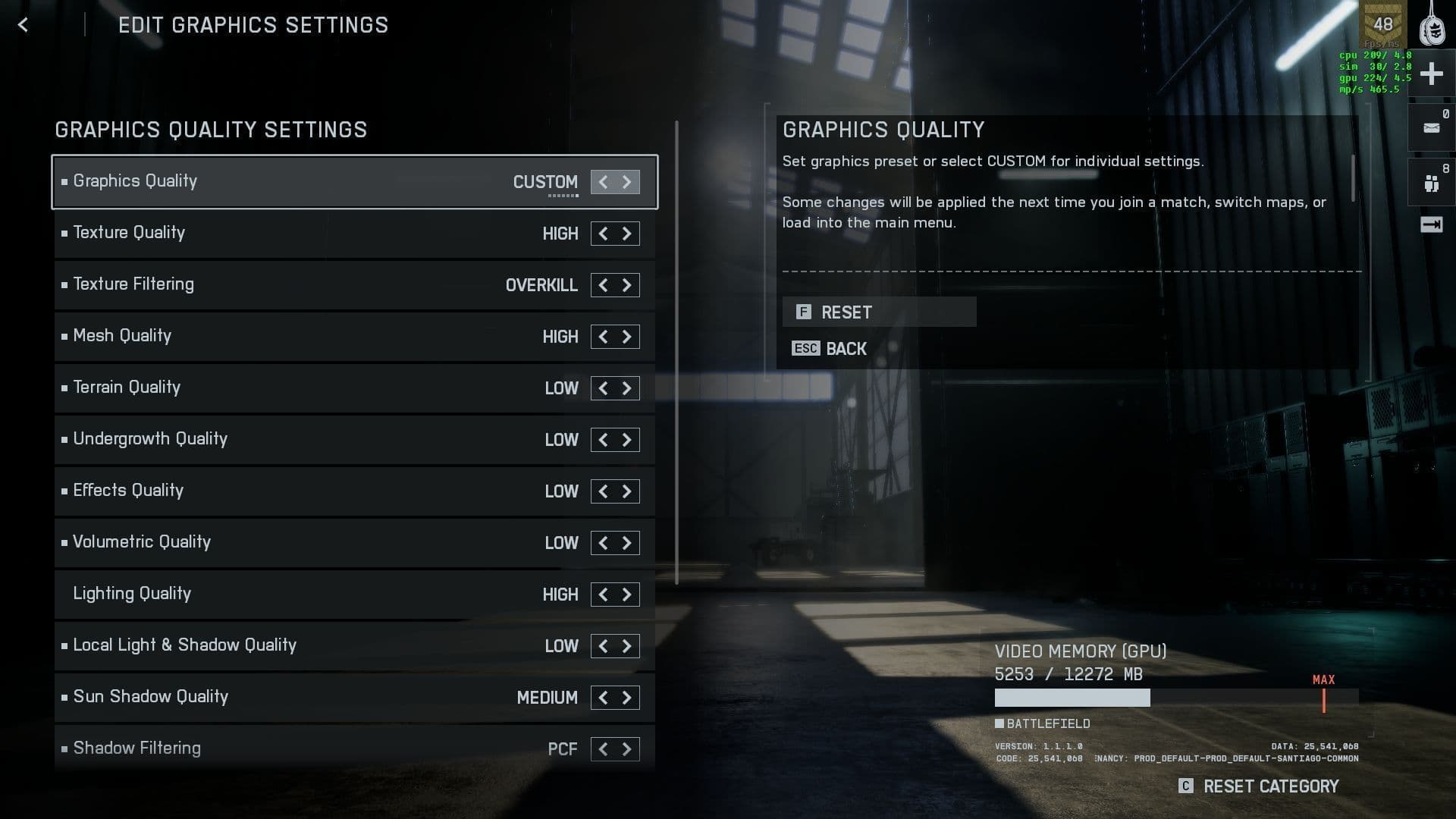
Best graphics settings for Battlefield ...
Essential Graphics Settings Configuration
Core Graphics Options
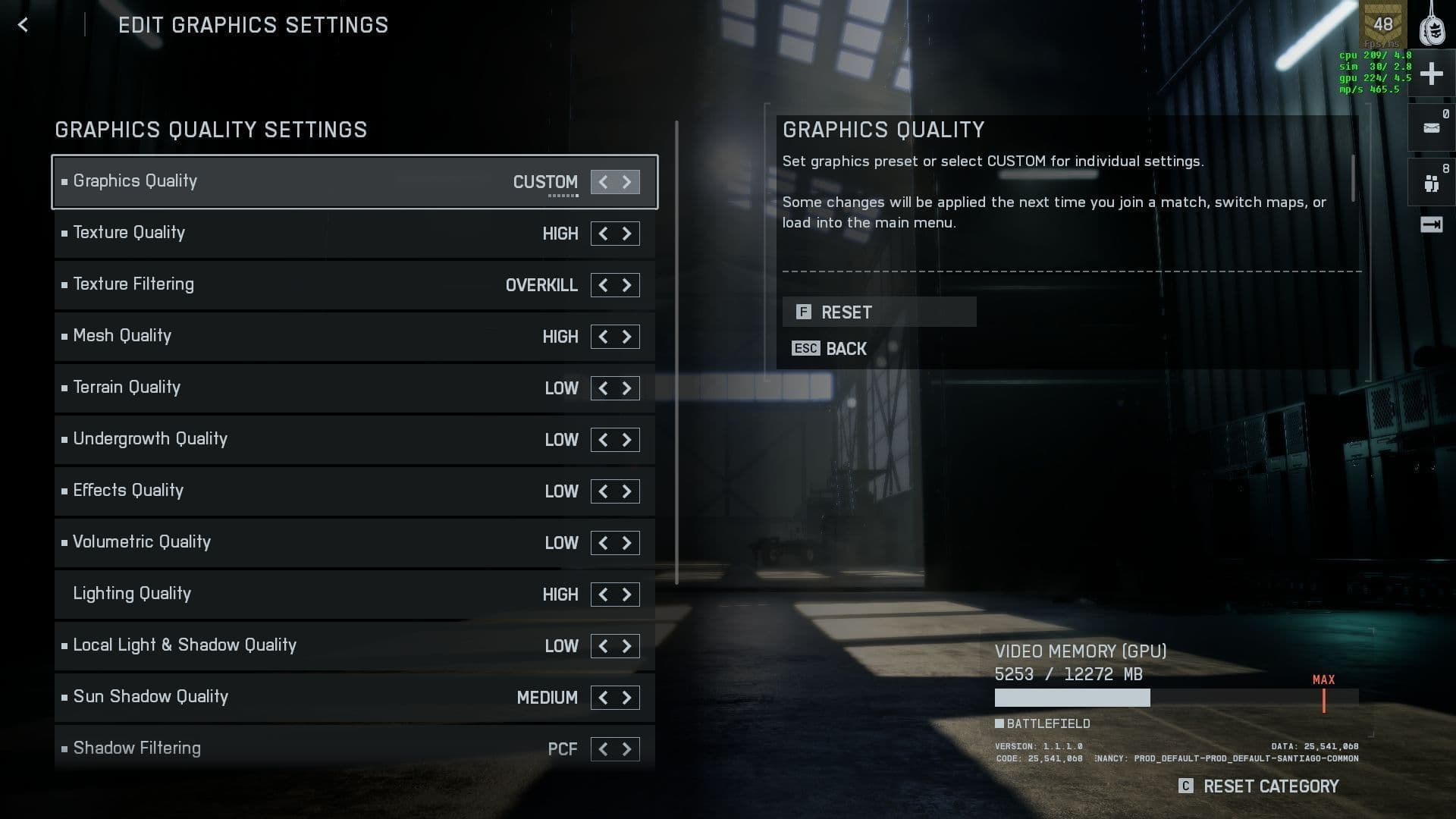
Start by setting your Performance Preset to Custom - this unlocks all individual options for fine-tuning. The Sharpness setting at 55 provides excellent edge definition without over-processing that can cause visual artifacts.
Advanced Graphics Breakdown
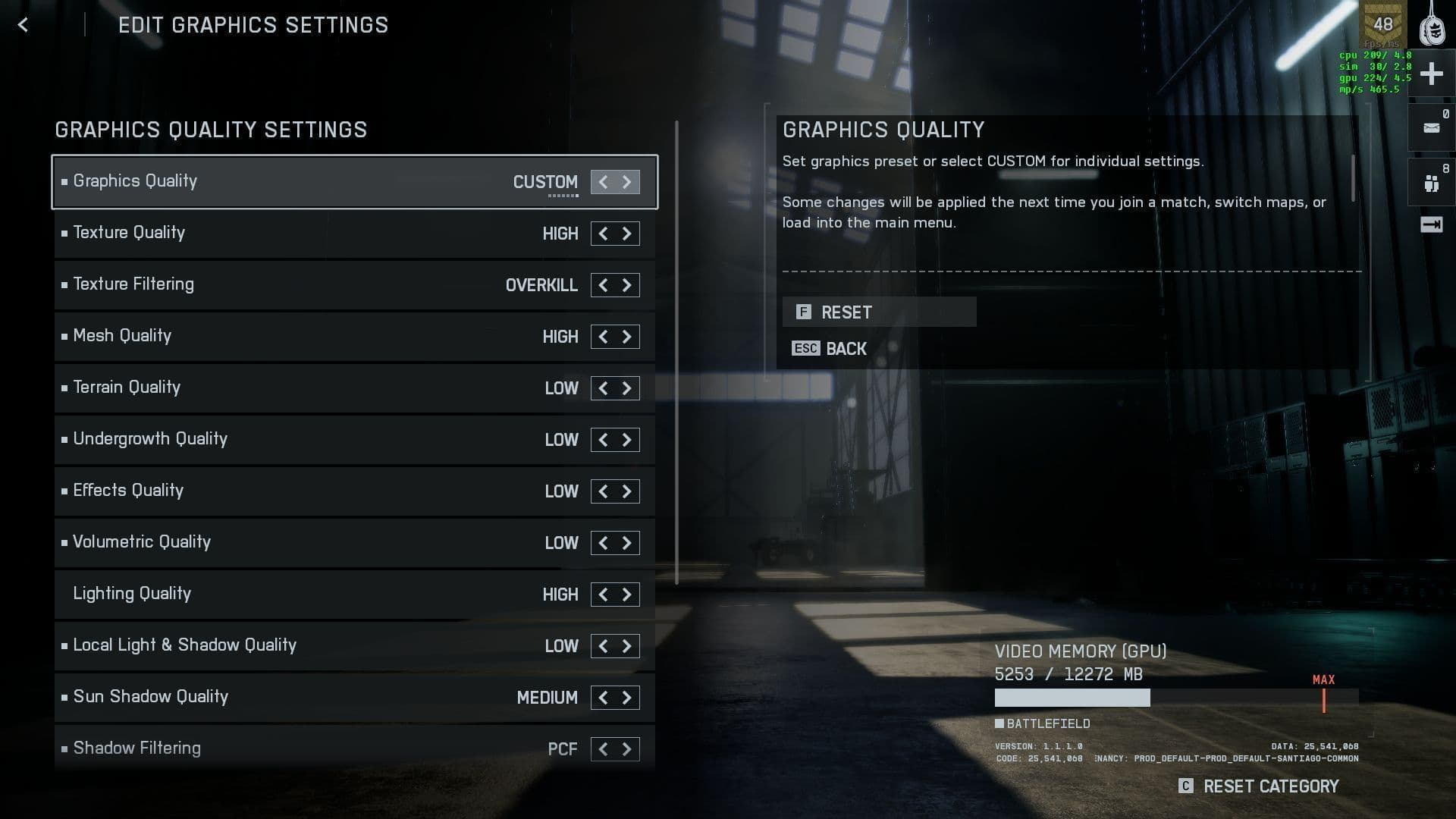
Terrain Quality offers the most significant performance boost when lowered, as it primarily affects distant landscape details that don't impact competitive gameplay. Keep Texture Quality on High if your graphics card has sufficient VRAM - typically 6GB or more.
Warning
Monitor your VRAM usage in-game. If you exceed your card's capacity, you'll experience severe stuttering regardless of other settings.
Best graphics settings for Battlefield ...
Display and Performance Optimization
Critical Display Settings
Configure these display options for maximum competitive advantage:
Borderless mode provides the best balance between performance and usability. While Exclusive Fullscreen might offer slightly better performance on older systems, Borderless eliminates the delay when switching between applications.
Advanced Performance Features
NVIDIA Reflex is crucial for competitive play - it significantly reduces the delay between your mouse input and the action appearing on screen. Even if you don't have a high-refresh monitor, this setting improves responsiveness.
Important
If you experience screen tearing with VSync off, consider enabling your monitor's G-Sync or FreeSync instead of in-game VSync.
Camera and Field of View Settings
Optimal Camera Configuration
A Field of View of 105 strikes the perfect balance - you'll see more of your surroundings without making distant targets appear too small to track effectively. Higher FOV values can cause distortion at screen edges and make precision aiming more challenging.
Battlefield RedSec: Best Settings for ...
Visual Effects Management
Disable these visual effects that can obscure enemies:
- World Motion Blur: Creates streaking that makes tracking moving targets difficult
- Weapon Motion Blur: Adds unnecessary visual noise during rapid movements
- Film Grain: Reduces overall image clarity
- Camera Shake: Can throw off your aim during explosions
Keep Vignette enabled - this effect darkens screen edges, making enemies in those areas more visible against the darker background.
Interface and HUD Optimization
Essential HUD Settings
Disabling HUD Motion prevents your interface elements from bouncing around during movement, making it easier to read information quickly during intense firefights.
Tip
Experiment with HUD opacity settings to find the right balance between visibility and screen clarity.
[IMAGE: Redsec HUD customization interface options]
Hardware-Specific Recommendations
For Mid-Range Systems (GTX 1660/RX 580)
- Texture Quality: Medium
- Mesh Quality: Medium
- Terrain Quality: Low
- Anti-Aliasing: TAA
For High-End Systems (RTX 3070+/RX 6700 XT+)
- Texture Quality: High
- Mesh Quality: High
- Terrain Quality: Medium
- Anti-Aliasing: DLAA (NVIDIA) or TAA
For Ultra-High-End Systems (RTX 4080+)
- All settings can be maximized while maintaining 100+ FPS
- Consider DLSS Quality mode for even higher frame rates
Final Performance Tips
Monitor your system's performance using built-in tools or third-party applications like MSI Afterburner. Watch for:
- GPU Usage: Should stay near 95-100% for optimal performance
- VRAM Usage: Keep below 90% of total capacity
- CPU Usage: Individual cores shouldn't hit 100% consistently
- Frame Time: Look for consistent timing rather than just high FPS
Remember that Battlefield Redsec is still receiving updates that may affect performance. Revisit these settings after major patches to ensure you're maintaining optimal performance as the game evolves.
The settings in this guide provide an excellent starting point, but every system is unique. Take time to test different configurations and find what works best for your specific hardware combination and playstyle preferences.