
Getting your controller dialed in perfectly can mean the difference between clutching that final circle and watching from the sidelines. Battlefield REDSEC demands precision, and the default settings just won't cut it when you're facing seasoned players who've optimized every aspect of their setup.
The battle royale mode feels distinctly different from traditional Battlefield multiplayer, requiring adjustments that prioritize quick target acquisition and smooth movement flow. Here's exactly how to configure your controller for maximum performance.
Why Controller Optimization Matters in REDSEC
Battlefield REDSEC throws you into intense firefights where split-second reactions determine survival. Unlike traditional Battlefield modes, the battle royale format means every engagement could be your last, making precise aim and fluid movement absolutely critical.
The game's default controller settings favor a more casual experience, but competitive play demands fine-tuned responsiveness. You'll notice immediate improvements in target tracking, recoil control, and overall game feel once these settings are properly configured.
Best controller settings for ...
Aim Settings
Core Sensitivity Configuration
Your foundation starts with Infantry Aim Sensitivity. Set this to 45 for the perfect balance between quick target acquisition and precise tracking. This setting allows you to snap to enemies quickly while maintaining control during sustained fire.
Tip
Start with 45 sensitivity and adjust in increments of 5 until you find your sweet spot. Higher isn't always better!
Advanced Aim Assist Configuration
Aim Assist settings deserve special attention in REDSEC. Keep Infantry Aim Assist at 100 to maintain competitive parity, but fine-tune the supporting settings:
- Infantry Aim Assist Slowdown: 100
- Infantry Aim Assist Zoom Snap: 100
- Soldier Aim Input Curve: BF4 (provides the most responsive feel)
The BF4 input curve offers superior responsiveness compared to the standard curve, giving you that snappy feel veteran players prefer.
Movement Settings
Sprint and Mobility Options
Smooth movement keeps you alive in REDSEC's open environments. Configure these settings for maximum fluidity:
Infantry Sprint should be set to Toggle to prevent thumb fatigue during long rotations. Enable Vault Over Sprint to maintain momentum when navigating obstacles, and set Crouch Toggle Sprint to Stand for quick transitions between movement states.
Important
Turn off Double Tap Forward Sprint to prevent accidental sprinting that could give away your position.Slide and Crouch Mechanics
Crouch Slide set to All ensures you can slide from any stance, crucial for quick repositioning during firefights. Enable Double Tap Crouch For Sprint Slide to chain movement seamlessly.
The Alternate button layout works best here, swapping crouch to the right analog stick for instant access while keeping your thumbs on the movement controls.
Zoom Sensitivity
Scope-Specific Settings
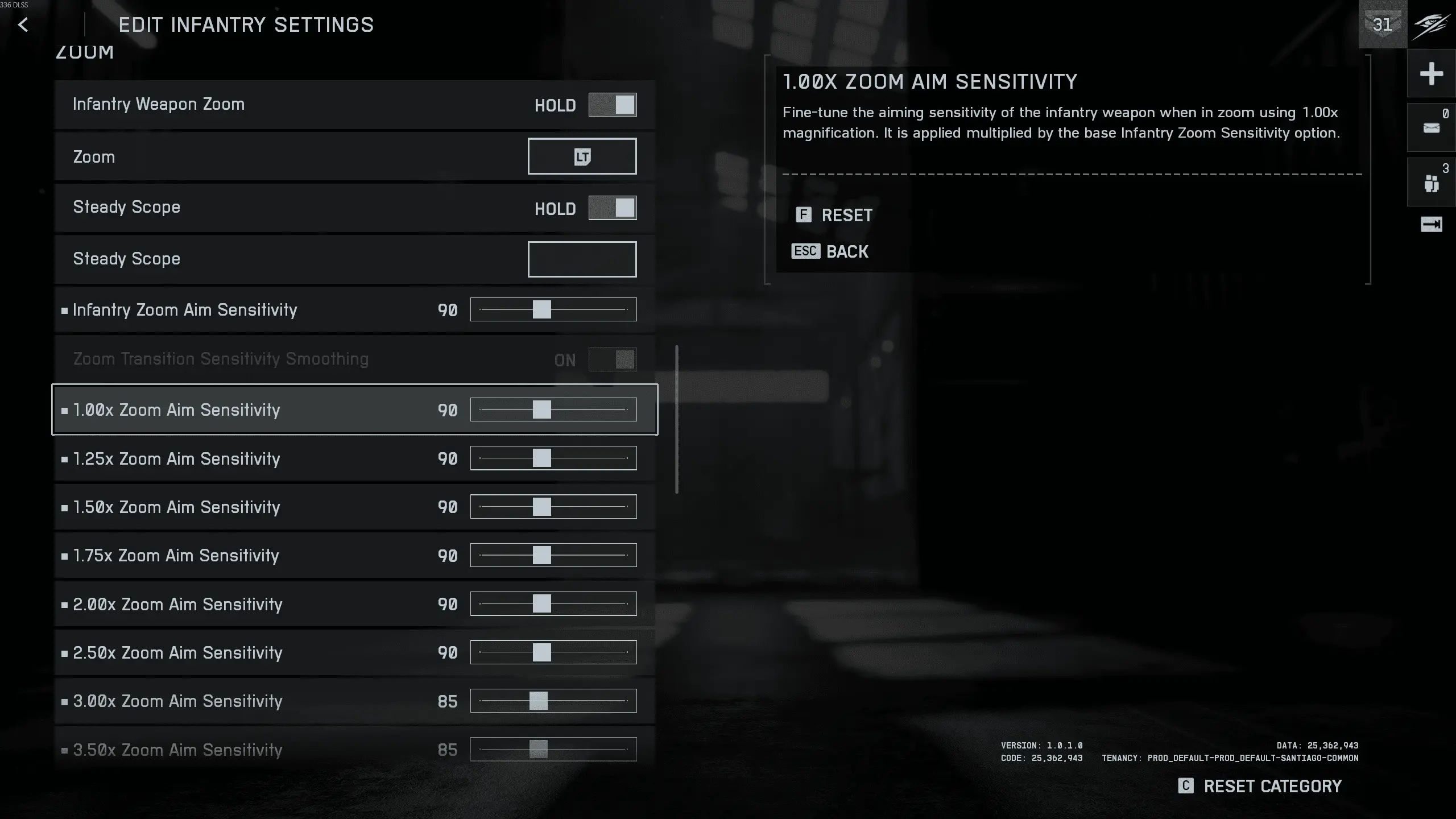
Different zoom levels require different sensitivities for optimal performance. Here's the breakdown that works across all weapon types:
Infantry Weapon Zoom should be set to Hold rather than toggle, giving you precise control over when you're scoped and maintaining situational awareness.
Steady Scope Configuration
Set Steady Scope to Hold and bind it to Click Left Joystick for easy access. This becomes essential for those crucial long-range shots where every bit of stability matters.
Warning
Avoid setting zoom sensitivity too low - you'll struggle to track moving targets at range.
Controller Hardware Optimization
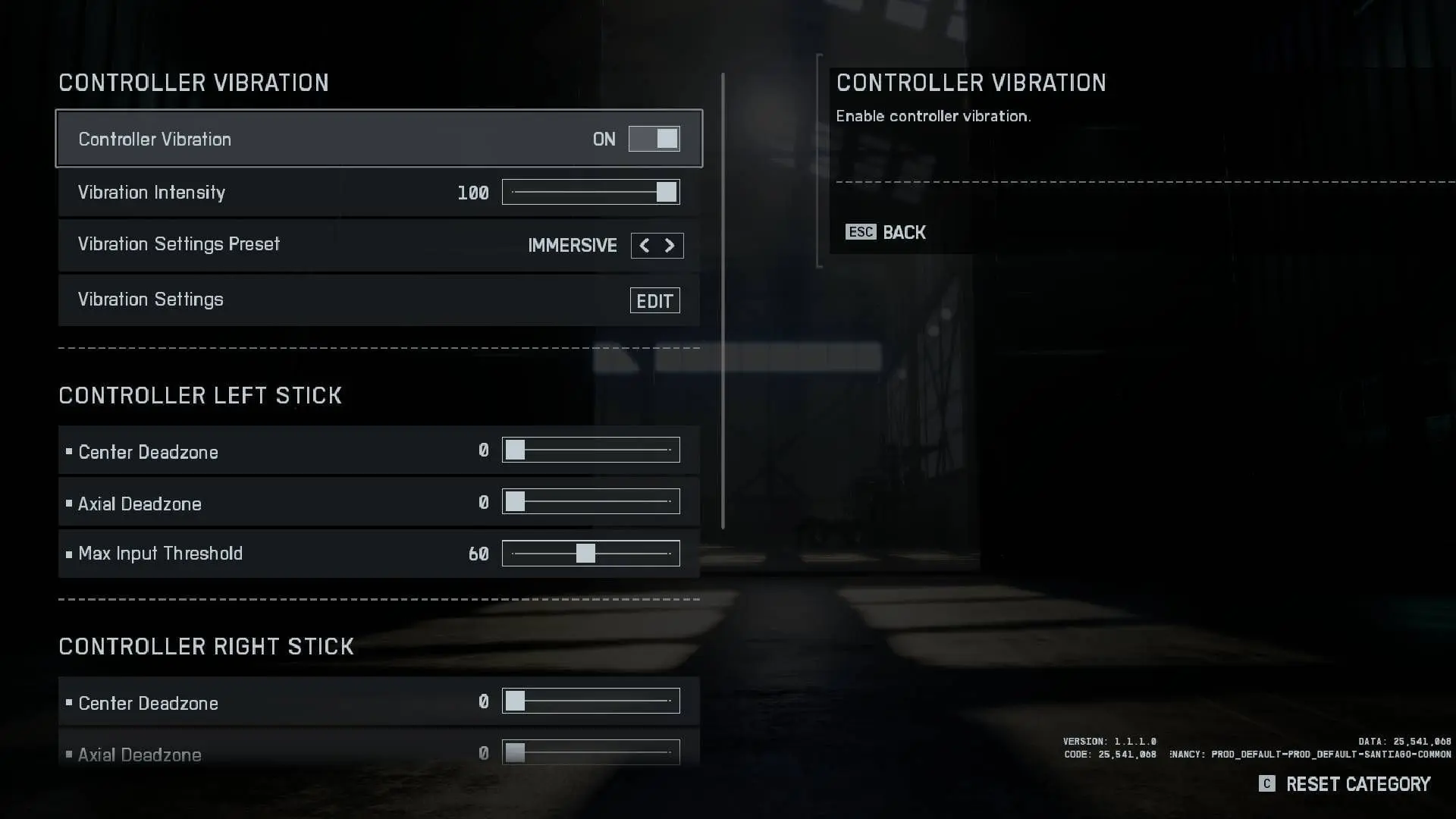
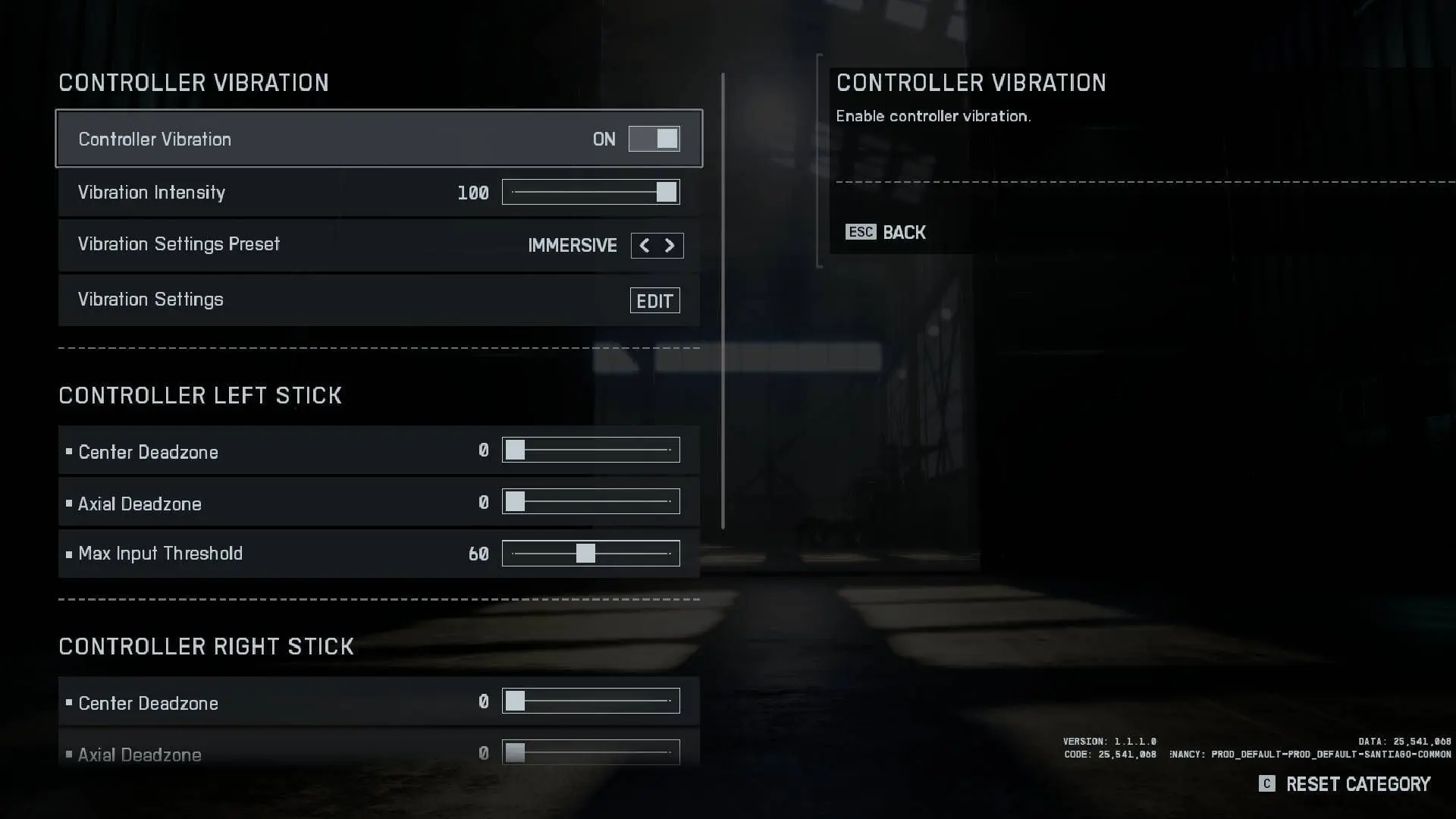
Deadzone Settings for Responsiveness
Your controller's physical response directly impacts in-game performance. These deadzone settings eliminate input lag while preventing stick drift:
Controller Left Stick:
- Center Deadzone: 2
- Axial Deadzone: 5
- Max Input Threshold: 100
Controller Right Stick:
- Center Deadzone: 2
- Axial Deadzone: 5
- Max Input Threshold: 100
Trigger Optimization
Set both LT Deadzone and RT Deadzone to 0 for instant trigger response. This eliminates the dead zone that can delay your shots in crucial moments.
Best controller settings for ...
Vehicle Control Adjustments
Ground and Air Vehicle Settings
Vehicles require different sensitivity settings due to their unique handling characteristics. Set Vehicle Aim Sensitivity to 30 - lower than infantry settings because vehicles are harder to control precisely.
For aircraft, keep Helicopter Control Sensitivity at 30 and turn off Helicopter Control Assists for more direct control. Enable Decouple Tank Turret Aiming From Turret for independent turret movement.
Advanced Features and Fine-Tuning
Flick Look Configuration
Infantry Flick Look Mode set to Always with a 90 threshold and 100 speed enables rapid 180-degree turns when you need to respond to flanking enemies quickly.
Interaction Priority Settings
Set Interact & Reload to Prioritize Interact to avoid accidentally reloading when trying to loot or revive teammates. This single setting prevents countless frustrating moments in clutch situations.