

Getting hit with the dreaded Secure Boot is Not Enabled error when trying to launch Battlefield 6? You're not alone. This security requirement is part of EA's Javelin anti-cheat system, designed to block cheating tools before they can even load. While frustrating, this error is completely fixable with the right approach. Let's get you back into the action with proven solutions that work for every PC configuration.

Battlefield 6 Guide: How To Fix‘ Secure Boot is Not Enabled’ Error
What Secure Boot Does in Battlefield 6?
Secure Boot isn’t just a minor technical requirement; it’s a key part of EA’s defense against advanced cheating techniques. As a UEFI firmware feature, Secure Boot ensures that only trusted software runs during your system’s startup. This creates a secure environment that the Javelin anti-cheat system depends on to function properly.
If you're playing on console, there’s no need to worry. This requirement only applies to PC users. For those on PC, it’s important to note that there are no workarounds—Battlefield 6 won’t launch unless Secure Boot is enabled. The good news is that most modern PCs built after 2012 already support Secure Boot by default.
important
EA has always maintained strict anti-cheat policies. Previous Battlefield titles would shut down if they detected potentially suspicious software, even legitimate controller apps like DS4Windows.
How to Turn On Secure Boot
Before diving into BIOS changes, let's verify your current setup and identify what needs fixing.
- Press Windows Key + R to open the Run dialog
- Type msinfo32 and hit Enter
- Navigate to System Summary
- Look for these critical settings:
If both settings show the correct values, you're already good to go! If not, you can check what to do per your motherboard or desktop manufacturer on the EA Support site.
If your settings are already correct, there’s nothing else you need to do.
But if adjustments are necessary, here’s a general step-by-step guide to help you enable SecureBoot:
- Press the Windows key and search for “Change Advanced Startup Options.”
- Under Advanced Startup, click “Restart Now” to reboot your device into a special boot menu.
- Navigate to Troubleshoot > Advanced Options > UEFI Firmware Settings.
- Click Restart to access your BIOS.
- Inside the BIOS, go to the Boot tab and look for Secure Boot State. Make sure it’s set to Enabled.
If Secure Boot is disabled and locked, enabling it may require extra steps depending on your system. In that case, it’s best to check EA’s official support resources for detailed guidance.
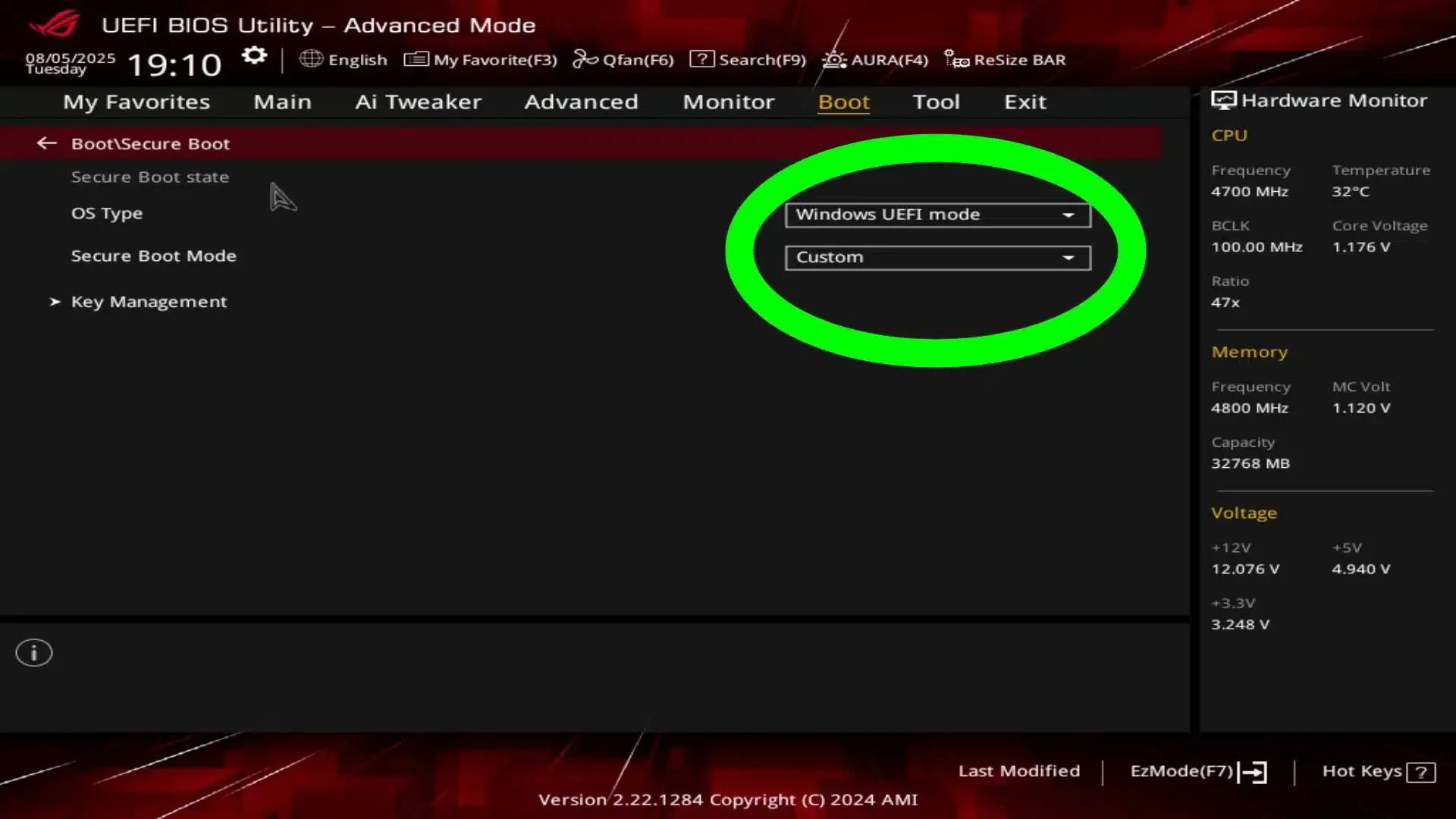
Battlefield 6 Guide for ...
You're now ready to experience Battlefield 6 with EA's robust anti-cheat protection working as intended. The Secure Boot requirement might seem like a hassle initially, but it creates a more secure gaming environment for everyone. Jump in and enjoy the battlefield!
For more Battlefield 6, check out our guide on How to Disable PS5 Adaptive Triggers.