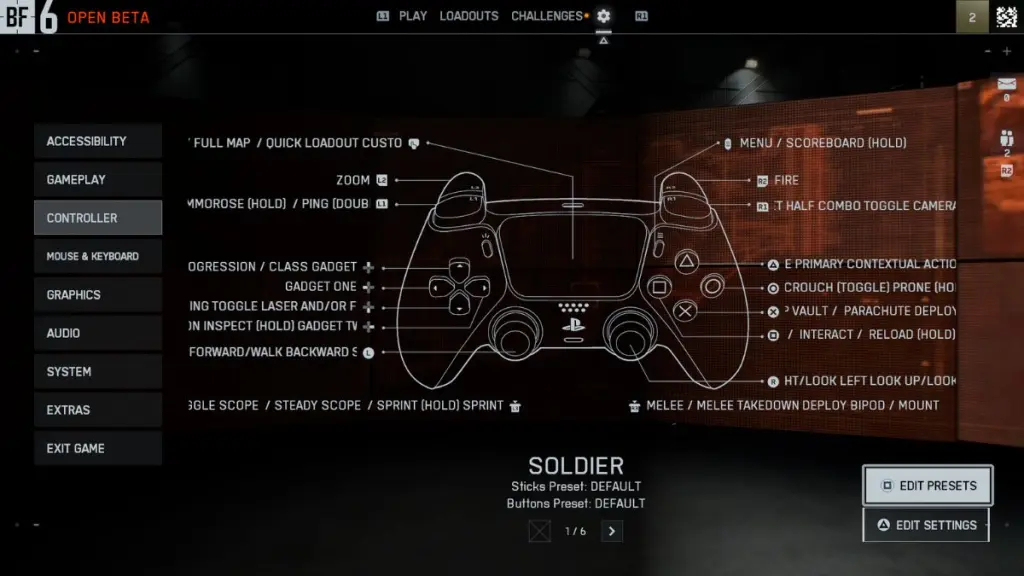

Getting your controller settings dialed in perfectly can transform your Battlefield 6 experience from frustrating to phenomenal. Now that the full game has officially launched, players can finally fine-tune their setup for maximum precision and comfort. Whether you’re struggling with aim consistency, getting caught off-guard by enemies in dark corners, or feeling like your shots just don’t connect, the right configuration makes all the difference. These optimized settings will sharpen your competitive edge and help you dominate every fight with confidence.
Accessibility
Your first stop should be the accessibility tab, where a few strategic changes will dramatically improve your battlefield awareness. These tweaks might seem minor, but they create significant advantages in heated firefights.
Color Profile
Navigate to Graphics > Color Preset and switch to custom for complete control over your visual experience. Here's the winning combination:
- Player Color: Bright yellow for enhanced minimap readability and kill feed visibility
- Friendly Color: Darker blue for clearer squad identification
- Squad Color: Darker green for improved team coordination
- Enemy Color: Darker red for sharper target acquisition during combat
tip
These darker, more saturated colors create better contrast against Battlefield 6 diverse environments, making crucial information pop during intense moments.
Brightness Configuration
Set your brightness to 60 - this is the sweet spot for eliminating those frustrating corner camper deaths. This 20% increase from default exposes enemies hiding in shadows without washing out brighter areas.
Controller Vibration
Turn off controller vibration completely. Battlefield 6 constant explosions, gunfire, and vehicle combat create non-stop controller feedback that will sabotage your aim precision. Every vibration pulls your crosshair off target during critical moments.
Gameplay
First, set your infantry aim sensitivity to 40. This strikes a clear balance between quick target pickup and precise tracking, reducing both overshoot and sluggish movement.
Match your vehicle aim sensitivity to 40 as well. Keeping the same value across infantry and vehicles preserves muscle memory, so switching roles feels natural.
warning
Avoid touching anything in the aim assist tab. These default values are perfectly calibrated, and modifications can seriously disrupt your targeting consistency.
Switch to tap to reload, hold to interact configuration. This prevents accidental reloads when you're trying to revive teammates or grab ammo during firefights. Quick Square taps for reloads, hold for everything else.
Advanced Aim Settings
Access the detailed controller settings through Controller > Soldier and configure these critical values:
- Field of View: 120
- Uniform Infantry Aiming: Enabled
- Zoom Sensitivity Coefficient: 178
- Soldier Input Type Curve: Battlefield 4 for familiar response
- Stick Input Acceleration: Battlefield 1 preset
- Aiming Acceleration: 65
Set your vertical aim ratio to 56 - this fine-tunes your vertical sensitivity for better recoil control. Your infantry zoom sensitivity should be 85, creating a noticeable but comfortable slowdown when aiming down sights for precise shots.
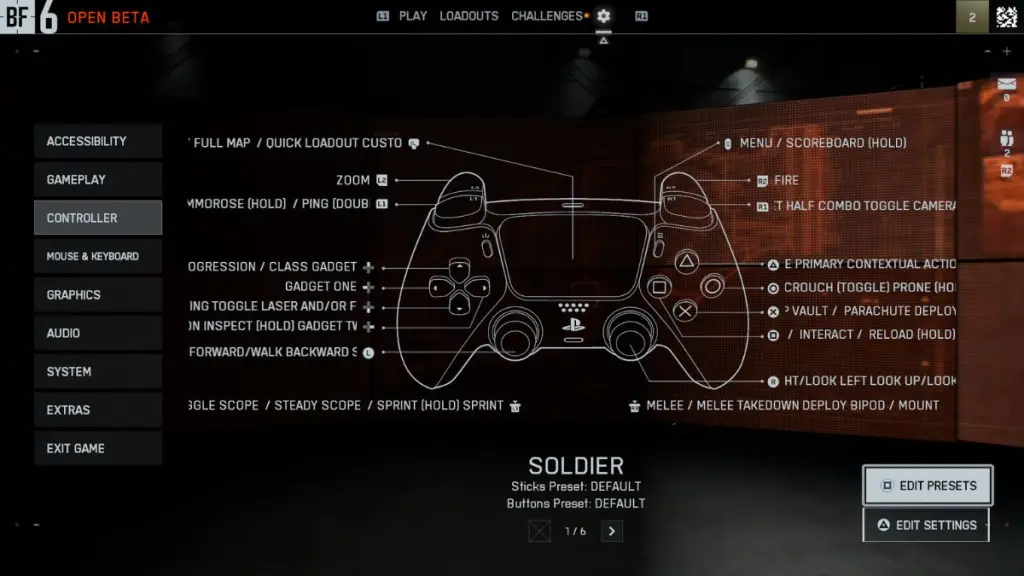
Controller Settings
Graphics
Choose performance preset over visual quality. Smooth, consistent framerates trump prettier graphics when you're trying to track fast-moving targets. The slight visual downgrade is worth the competitive advantage.
Visual Clarity
- Sharpness: 60
- Motion Blur: 0 (both world and weapon)
- Camera Shake: 20
- Chromatic Aberration, Vignette, Film Grain: All disabled
Field of View
Max out these FOV settings for superior battlefield awareness:
- Field of View: 120
- Vehicle Third Person FOV: 83
- Weapon FOV: Wide to minimize visual recoil
important
Higher FOV reduces the visual impact of muzzle flash and recoil, making automatic weapons much more manageable.
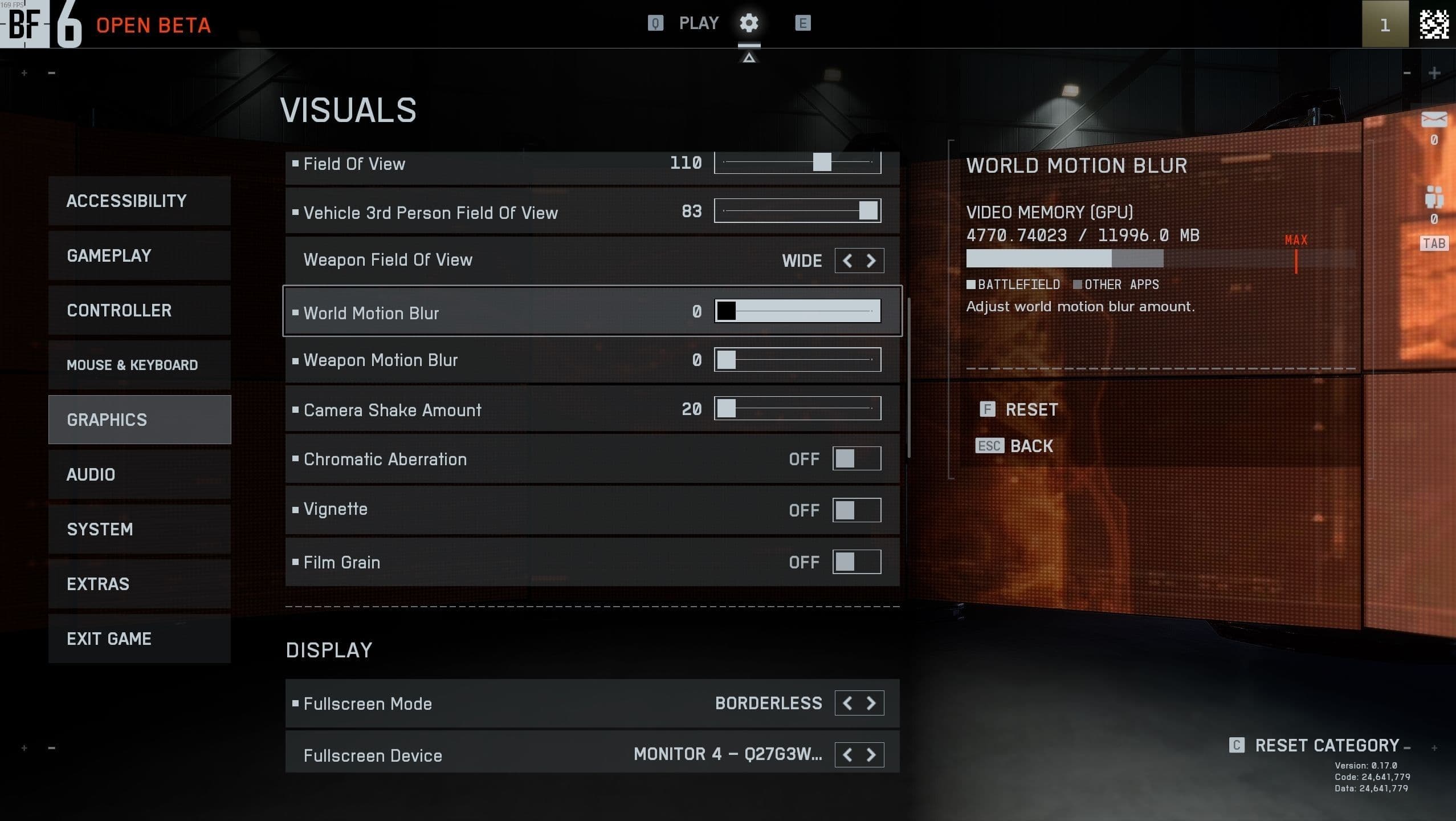
Graphic Settings
Crosshair and Indicator Setup
Keep your crosshair easy to see in every map. Set the color to bright blue or teal so it stays visible in dark interiors and bright outdoor areas, which helps with centering and quick target pickup. Leave crosshair thickness at the default so it is clear without covering targets. Disable Infantry Crosshair Projection so the hipfire crosshair stays clean and does not add extra movement on screen.
For hit feedback, aim for clear signals without clutter. Use full opacity so hits are obvious, keep the effect strength moderate, and pick colors that you can read at a glance.
Optimize your damage feedback with these settings:
- Hit Indicator Opacity: 100
- Hit Indicator Intensity: 60
- Headshot Color: Yellow
- Kill Color: Red
- Damage Number Size: Medium
Audio
Set your sound system to Headphones, even if you use speakers. This profile processes directional audio more clearly, which helps you track footsteps, reloads, and vehicle movement during fights. For the mix, choose War Tapes. It delivers a clean, punchy sound that makes important cues stand out without muddying the scene.
Balance your volume so effects are easy to hear without clipping. Consider turning music off to keep your focus on gameplay sounds. The goal is to catch every small audio hint that can give you an edge.
Quick picks:
- Sound System: Headphones
- Audio Mix: War Tapes
- Music: Off
Now that your settings are locked in, it’s time to hit the battlefield! Check out our beginner tips and tricks guide to pick up the techniques you’ll need to stay sharp and dominate your matches.