

Nothing ruins an intense extraction like watching your character teleport across Speranza while enemies seemingly shoot through time itself. You're not alone in this struggle. ARC Raiders Unreal Engine 5 foundation creates unique performance challenges that even high-end rigs can't brute-force their way through.
The good news? Most stuttering and lag issues stem from specific, fixable problems rather than hardware limitations. Whether you're dealing with frame time spikes during combat or network delays that make your shots register seconds late, this guide provides targeted solutions that actually work.
What Type of Performance Problem Are You Facing?
Before diving into fixes, you need to identify whether you're battling performance lag or network lag. These require completely different approaches, and mixing up the diagnosis wastes precious gaming time.
Performance Lag Symptoms
- Frame drops during intense firefights
- Stuttering when new effects appear
- Hitching in crowded areas
- Consistent frame time spikes above 40ms
Network Lag Symptoms
- Character rubber banding back to previous positions
- Delayed hit registration despite good aim
- Actions occurring seconds after input
- High ping readings in network stats
Tip
Run the game for 2-3 minutes during peak hours to get an accurate diagnosis. Many players experience both issues simultaneously, but identifying the dominant problem helps prioritize fixes.
Quick Performance Wins That Actually Matter
Start with these high-impact fixes before diving into advanced optimization. These four changes resolve the majority of stuttering complaints within minutes.
Update Your Graphics Drivers
Outdated GPU drivers cause more crashes and stutters than any other single factor. Download the latest Game Ready drivers directly from NVIDIA, AMD, or Intel rather than relying on Windows Update.
For NVIDIA users: Use the NVIDIA App for automatic detection For AMD users: Download through AMD Software Adrenalin Edition For Intel Arc users: Use Intel Driver & Support Assistant
Verify Game File Integrity
Corrupted files create random stutters and crashes that no amount of settings tweaking can fix.
Steam users:
- Right-click ARC Raiders in your library
- Select Properties > Installed Files
- Click Verify Integrity of Game Files
Epic Games users:
- Find ARC Raiders in your library
- Click the three dots menu
- Select Manage > Verify Files
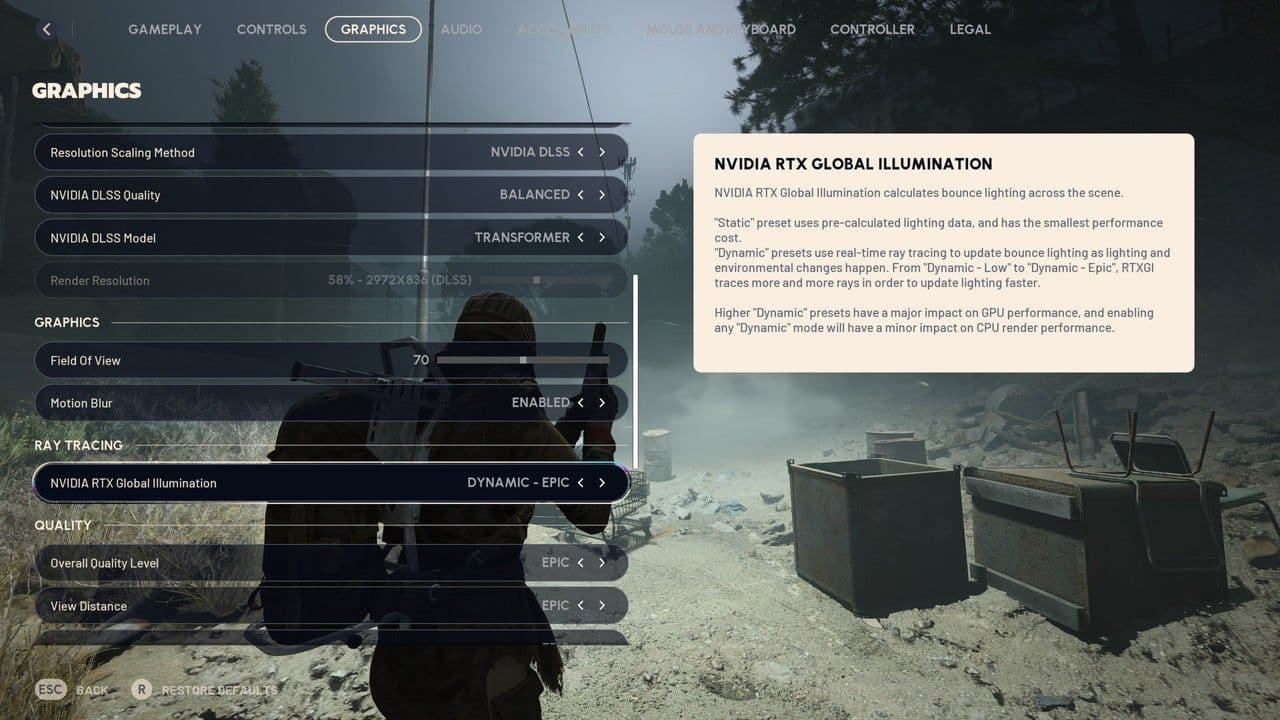
Lower Shadow and Effects Settings
These two settings consume massive GPU resources during combat scenarios. Dropping both to Low delivers 10-15% FPS gains with minimal visual impact.
Enable DLSS or FSR Upscaling
Set upscaling to Quality or Balanced mode. This renders at lower resolution then reconstructs the image, providing 30-50% FPS boosts while maintaining sharp visuals.
ARC Raiders Stuttering and Lag Issues Fix
Combat Unreal Engine 5 Stuttering Issues
ARC Raiders runs on Unreal Engine 5, which creates specific stuttering patterns even on powerful hardware. These aren't hardware failures but engine behaviors that require targeted fixes.
Understanding Shader Compilation Stutters
When new visual effects appear for the first time, UE5 compiles shaders in real-time, causing brief freezes. This explains why stutters often occur during your first few matches but improve over time.
Storage Speed Requirements
UE5's asset streaming continuously loads textures and models from your drive. Any bottleneck in this chain creates hitches:
- NVMe SSD: Ideal performance
- SATA SSD: Acceptable minimum
- HDD: Constant micro-stutters
Warning
Installing ARC Raiders on a mechanical hard drive guarantees persistent stuttering regardless of your CPU or GPU power.
Background Process Elimination
Close these stutter-inducing programs before launching:
- Discord overlay (disable in User Settings)
- NVIDIA ShadowPlay recording
- MSI Afterburner monitoring
- RGB lighting software
- Browser tabs with video content
ARC Raiders Stuttering and Lag Issues Fix
Graphics Settings for Maximum Stability
Optimize settings based on performance impact rather than visual preference. Competitive extraction shooters reward smooth performance over eye candy.
Essential Settings Changes
Shadows: Low
- Eliminates dynamic shadow calculations
- Improves enemy visibility in dark areas
- Delivers biggest single FPS gain
Effects & Reflections: Low
- Stabilizes frame rates during explosions
- Reduces particle system overhead
- Critical for consistent combat performance
Global Illumination: Low
- Minimal visual difference during fast gameplay
- Decent FPS savings with little downside
Foliage: Low
- Major competitive advantage
- Different density levels can hide enemies
- Lower settings provide clearer sightlines
Motion Blur: Off
- Zero competitive benefit
- Reduces visual clarity during movement
- Small but worthwhile FPS gain
Depth of Field: Off
- Blurs background objects
- Hinders long-range enemy spotting
- Always disable for competitive play
Important
Match texture quality to your GPU's VRAM amount. Running Epic textures on a 4GB card causes constant VRAM thrashing and severe stuttering.
Network Lag Solutions
Network lag feels different from performance lag. Your FPS counter shows high stable frames, but the game feels unresponsive due to connection issues rather than hardware limitations.
Switch to Wired Ethernet
Wi-Fi introduces packet loss and latency spikes that no amount of signal strength can eliminate. Even strong Wi-Fi connections suffer from interference that creates inconsistent performance.
Optimize Your Home Network
- Close bandwidth-heavy applications like 4K streaming
- Ask household members to pause large downloads during matches
- Use 5GHz Wi-Fi band if wired connection isn't possible
- Power cycle your router by unplugging for 60 seconds
Server Selection Strategy
Physical distance determines baseline latency. Always select the geographically closest server region, even if it means slightly longer matchmaking times.
Advanced System Optimization
Windows 11 Gaming Features
Enable these built-in optimizations:
- Game Mode in Settings > Gaming
- Hardware-Accelerated GPU Scheduling
- High Performance power mode
- Disable Memory Integrity in Core Isolation
GPU Control Panel Tweaks
NVIDIA Control Panel:
- Low Latency Mode: Ultra
- Power Management: Prefer Maximum Performance
- Texture Filtering Quality: High Performance
- Vertical Sync: Off (use G-Sync instead)
AMD Radeon Settings:
- Radeon Anti-Lag: Enable
- Enhanced Sync: Enable
- Frame Rate Target Control: 3-5 FPS below monitor refresh
- Surface Format Optimization: Enable
Warning
Disabling Memory Integrity improves gaming performance but reduces system security. Only disable if you prioritize maximum FPS and understand the security implications.
Troubleshooting Persistent Issues
When Stuttering Persists Despite Optimization
Monitor frame time graphs rather than average FPS. Stuttering shows as sharp spikes to 40ms+ even when average frame time stays low. Use AMD Software (Ctrl+Shift+O) or NVIDIA overlay to display real-time frame time data.
Hardware Bottleneck Identification
- CPU bottleneck: Low GPU usage with high CPU usage
- GPU bottleneck: High GPU usage with lower CPU usage
- RAM bottleneck: High memory usage with frequent disk activity
- Storage bottleneck: Stutters correlate with disk usage spikes
Last Resort Solutions
If standard fixes fail:
- Clean install graphics drivers using DDU (Display Driver Uninstaller)
- Reinstall ARC Raiders on your fastest storage drive
- Update Windows to the latest build
- Check for overheating - keep GPU below 85°C
Why These Fixes Work
ARC Raiders' performance issues stem from three primary sources: Unreal Engine 5's shader compilation system, aggressive asset streaming requirements, and network routing inefficiencies. By addressing each systematically, you eliminate the root causes rather than masking symptoms.
The key insight? Most "lag" isn't actually hardware limitation but optimization problems that proper configuration resolves. Even mid-range systems can achieve smooth performance with the right settings and network setup.
Your extractions should feel responsive and fair. When performance issues disappear, you can focus entirely on tactical decisions rather than fighting your own system. That's exactly how competitive shooters should feel.
For more Arc Raiders, check out our Weapon Tier List.