
Getting the perfect balance between visual quality and performance in Arc Raiders can make the difference between successful extractions and frustrating defeats. After extensive testing across various hardware configurations, we've identified the optimal settings that deliver smooth framerates while maintaining the visual clarity you need to spot enemies and navigate Spironza's dangerous landscapes.
The post-apocalyptic world of Arc Raiders demands precise movement and quick reactions. Whether you're sneaking past deadly Arc machines or engaging in intense firefights with rival raiders, your PC settings directly impact your survival chances. Let's dive into the configurations that will give you the competitive edge you need.
Essential Graphics Settings for Maximum Performance
Your graphics settings form the foundation of smooth gameplay in Arc Raiders. These configurations prioritize performance while preserving the visual elements crucial for competitive play.
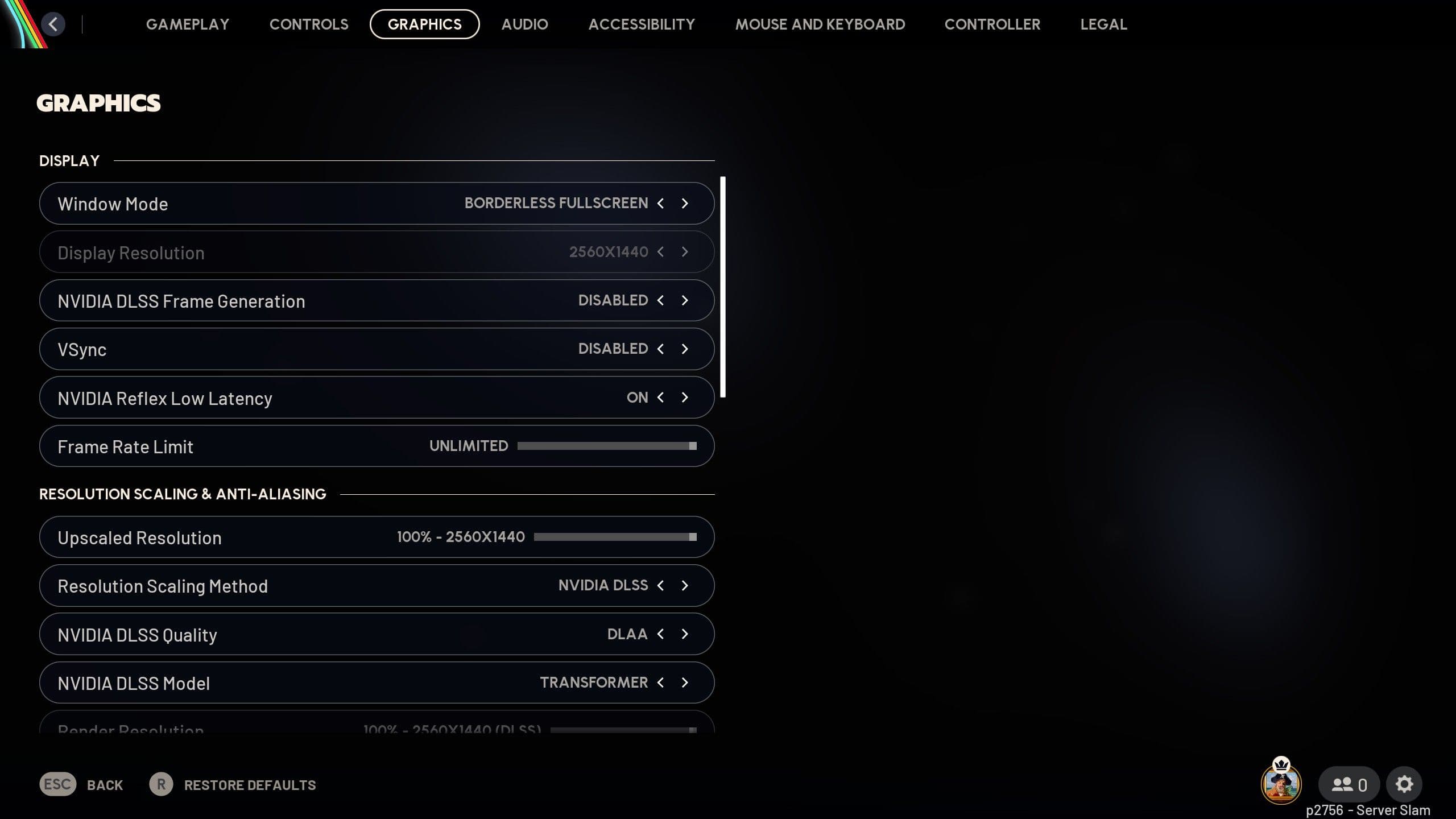
Display Resolution should match your monitor's native resolution for the sharpest image quality. However, if you're struggling with performance, dropping to 1440p or 1080p can provide significant FPS gains without severely impacting visibility.
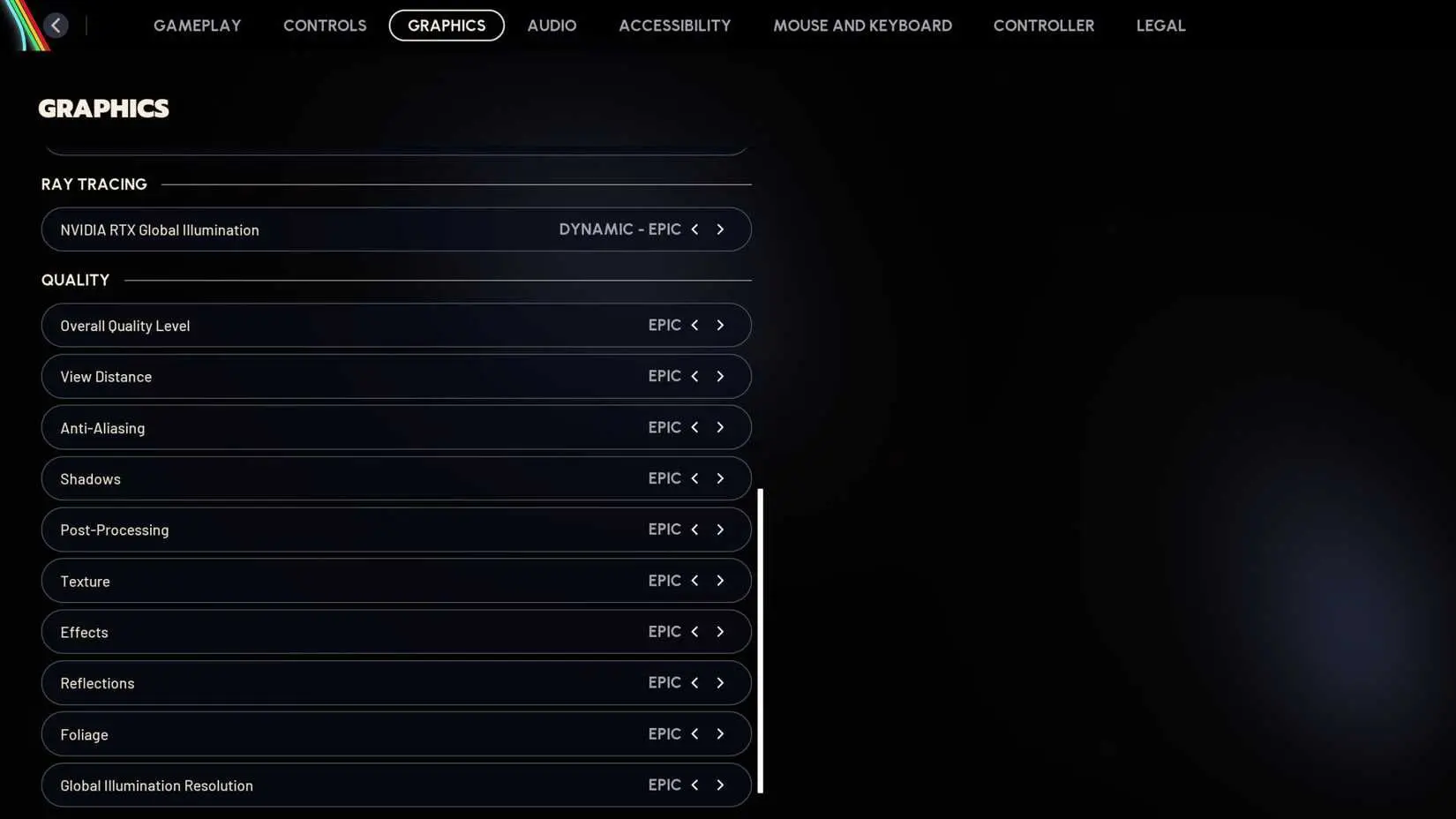
Texture Quality can safely be set to High on most modern systems. This setting has minimal performance impact while ensuring you can clearly distinguish between different materials and surfaces, which is crucial when identifying loot quality and enemy positions.
Friends in ARC Raiders (Crossplay ...
Set Shadow Quality to Medium for the best balance. Shadows help you spot enemy movement and provide important visual cues about your surroundings, but ultra-high shadow settings tank performance without meaningful benefits.
Anti-Aliasing should be configured to TAA (Temporal Anti-Aliasing) for smooth edges without the massive performance hit of more demanding options. This keeps distant enemies clearly visible while maintaining solid framerates.
Tip
Disable Motion Blur completely. This effect makes tracking moving targets significantly harder and provides no competitive advantage in a tactical shooter like Arc Raiders.Advanced Performance Optimization
Beyond basic graphics settings, several advanced options can dramatically improve your Arc Raiders experience. These tweaks target specific performance bottlenecks that commonly affect extraction shooters.
View Distance deserves special attention in Arc Raiders. Set this to High rather than Ultra. You need to spot enemies and Arc machines at long range, but the Ultra setting often renders unnecessary detail that hurts performance without improving gameplay.
Effects Quality can be reduced to Medium without losing important visual information. You'll still see muzzle flashes, explosions, and other critical combat effects while gaining substantial FPS improvements.
Post-Processing settings vary in importance. Keep Ambient Occlusion enabled at Medium for better depth perception, but disable Chromatic Aberration and Film Grain as these effects can make spotting enemies more difficult.
V-Sync should typically be disabled in favor of your graphics card's adaptive sync technology (G-Sync/FreeSync) if available. This reduces input lag while maintaining smooth visuals.
CPU and System Optimization
Arc Raiders benefits significantly from proper CPU optimization, especially given the complex AI behavior of Arc machines and the need to track multiple players across large maps.
Navigate to your Arc Raiders installation folder and locate the configuration files. You can adjust several parameters that aren't exposed in the in-game menus.
Worker Thread Count should be set to match your CPU's core count minus one. This leaves one core available for system processes while maximizing Arc Raiders' performance. For a 6-core CPU, set this to 5.
Memory Pool Size can be increased if you have 16GB or more of RAM. This reduces texture streaming hitches and provides smoother gameplay when moving between different areas of the map.
Important
Always backup your configuration files before making manual edits. Invalid settings can prevent the game from launching properly.
Windows Game Mode should be enabled when playing Arc Raiders. This setting prioritizes system resources for your game and can provide noticeable performance improvements, especially on systems with background applications running.
Disable Windows Full Screen Optimizations for the Arc Raiders executable. Right-click the game's .exe file, select Properties, navigate to Compatibility, and check "Disable fullscreen optimizations." This can reduce input lag and improve frame pacing.
Arc Raiders Optimization Guide: Best ...
Network and Input Settings
Smooth online performance is crucial in Arc Raiders where split-second decisions determine whether you successfully extract or lose your valuable loot to other players.
Network Buffer Size should be set to Small if you have a stable internet connection. This reduces the delay between your actions and their appearance on other players' screens, giving you a competitive advantage in firefights.
Input Buffer settings deserve careful attention. Set Raw Input to enabled to bypass Windows mouse acceleration and ensure consistent aim sensitivity across all movements.
Frame Rate Limit should typically be set to your monitor's refresh rate plus 20-30 FPS. This ensures consistent frame delivery while preventing unnecessary GPU strain. For a 144Hz monitor, cap frames at 170-175 FPS.
Warning
Unlimited framerates can cause inconsistent frame pacing and increased input lag in some systems. A properly set frame cap often provides smoother gameplay than unlimited FPS.
Audio Configuration for Competitive Advantage
Arc Raiders features exceptional directional audio that can give you crucial information about enemy positions and Arc machine movements. Proper audio settings are essential for survival.
Audio Quality should be set to High regardless of your hardware. Audio processing has minimal performance impact but provides critical gameplay information.
Dynamic Range works best on Full setting. This preserves the subtle audio cues that help you detect approaching enemies while maintaining clear communication with teammates.
Spatial Audio should be enabled if you're using headphones. This technology significantly improves your ability to pinpoint enemy locations and react to threats from multiple directions.
Disable Audio Compression for the clearest possible sound reproduction. Compressed audio can mask important audio cues like footsteps and weapon reloads.
Monitor and Display Optimization
Your monitor settings work hand-in-hand with Arc Raiders' graphics options to deliver optimal visual clarity and responsiveness.
Brightness should be calibrated so you can clearly distinguish details in both bright outdoor areas and darker indoor locations. Arc Raiders features significant lighting variation, and proper brightness helps you spot enemies in all conditions.
Contrast adjustments can improve enemy visibility. Increase contrast slightly to make player silhouettes stand out against complex backgrounds, but avoid extreme settings that crush detail in shadows or highlights.
Color Saturation can be increased by 10-15% to make important visual elements more distinct. This helps you quickly identify loot quality and spot movement in your peripheral vision.
Tip
Use your monitor's gaming mode if available. These presets typically reduce input lag and optimize color reproduction for competitive gaming.
Hardware-Specific Recommendations
Different hardware configurations benefit from specific optimization approaches in Arc Raiders.
NVIDIA RTX Users should enable DLSS if available, setting it to Quality mode for the best balance of performance and visual fidelity. DLSS can provide 20-40% performance improvements with minimal visual compromise.
AMD Users can leverage FSR (FidelityFX Super Resolution) for similar benefits. Set FSR to Quality mode for optimal results, though the visual impact may be slightly more noticeable than DLSS.
Low-End System Optimization requires more aggressive settings. Reduce Texture Quality to Medium, set Shadow Quality to Low, and disable Ambient Occlusion entirely. These changes can provide playable framerates on older hardware.
High-End System Enhancement allows you to prioritize visual quality. Enable Ray Traced Reflections if your GPU supports it, as this can improve situational awareness by providing clearer reflections in windows and water surfaces.
Troubleshooting Common Performance Issues
Several common problems can impact Arc Raiders performance, but most have straightforward solutions.
Stuttering during gameplay often results from insufficient VRAM or aggressive texture streaming. Reduce Texture Quality by one step and enable Texture Streaming if available.
Input Lag issues typically stem from V-Sync or Windows optimizations. Disable V-Sync, enable Raw Input, and ensure Game Mode is active in Windows settings.
Inconsistent Framerates can be caused by thermal throttling or background processes. Monitor your CPU and GPU temperatures during gameplay, and close unnecessary applications before launching Arc Raiders.
Info
The built-in performance overlay (Ctrl + Shift + F1) displays real-time FPS, frame time, and system utilization data to help identify performance bottlenecks.Crash Issues are sometimes related to overclocking or driver conflicts. Ensure your graphics drivers are current and consider temporarily disabling any CPU or GPU overclocks to test stability.
These optimized settings provide the foundation for exceptional Arc Raiders performance. Remember that the post-apocalyptic world of Spironza rewards players who can react quickly and spot threats early. With properly configured PC settings, you'll have the technical advantage needed to successfully extract valuable loot and survive encounters with both Arc machines and rival raiders.
The key to mastering Arc Raiders lies not just in understanding the game's mechanics, but in ensuring your hardware delivers the smooth, responsive experience necessary for split-second decisions. These settings give you that crucial edge in the dangerous world above ground.
For more Arc Raiders, check out our Ultimate Beginner's Guide.